PAIDIA STUDIO
14. 위험 작업 — 앱 삭제, 데이터 초기화, 계정/거래 물리 삭제 전에 해야 할 일
14. 위험 작업 — 앱 삭제, 데이터 초기화, 계정/거래 물리 삭제 전에 해야 할 일
타미오는 대부분의 "지우기"를 삭제가 아니라 종료·보관으로 처리한다(3장, 5장). 하지만 아래 세 가지는 실행하면 되돌릴 수 없는 진짜 삭제다. 실행하기 전에 반드시 12장의 백업을 먼저 만들어 둔다.
거래를 완전히 삭제하기
거래 상세에서 삭제를 선택하면 "거래를 삭제할까요?" 확인이 뜬다.
- 이 거래는 완전히 사라지고, 관련된 잔액·통계가 즉시 다시 계산된다.
- 저장하지 않은 변경 중이었다면 그 변경도 함께 사라진다.
- 어느 경우든 확인 문구에 "되돌릴 수 없습니다"라고 명시된다.
계정(자산)을 삭제하기
계정 삭제는 그 계정에 거래가 있는지에 따라 다르게 동작한다.
- 거래가 없는 계정: "거래가 없는 계정을 완전히 삭제합니다. 이 작업은 취소할 수 없습니다"라는 확인 뒤 바로 삭제된다.
- 거래가 있는 계정: 두 가지 중 하나를 고른다.
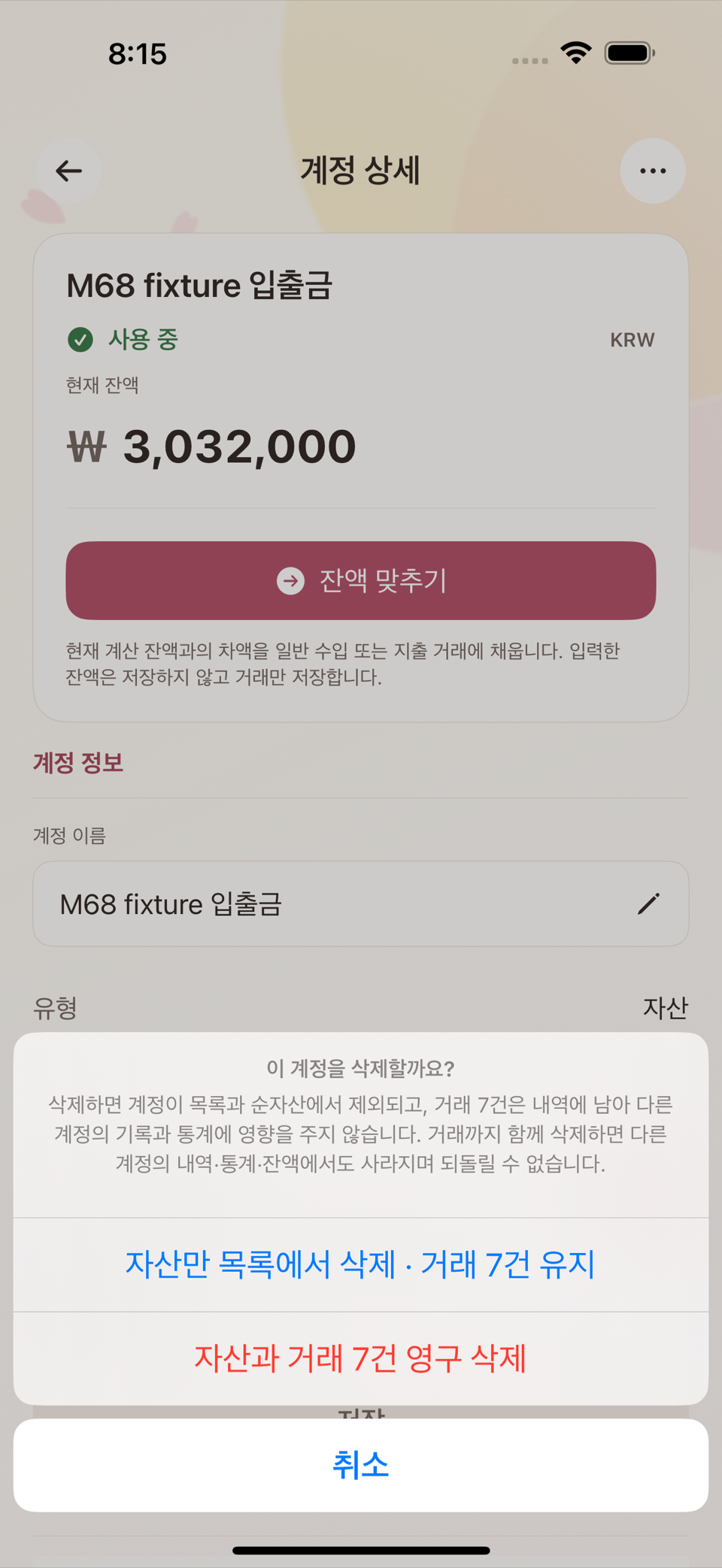
- 자산만 목록에서 삭제 · 거래는 유지 — 계정은 없어지지만 과거 거래 기록은 남는다.
- 자산과 거래를 함께 영구 삭제 — 계정과 그 계정에 딸린 거래·태그·영수증까지 전부 원자적으로 사라진다.
두 번째 선택지는 이 앱에서 가장 파괴적인 작업이다. 실행 전 반드시 그 계정의 거래가 정말 필요 없는지 확인한다.
데이터 전체 초기화
설정의 데이터 초기화는 모든 장부 데이터를 최초 설치 상태로 되돌린다. 화면 상단에 "되돌릴 수 없는 위험 구역" 경고가 뜨고, 실제로 실행하려면 확인 칸에 정확히 "초기화" 라는 글자를 그대로 입력해야 한다(대소문자·공백을 봐주지 않는다). 그런 다음에만 모든 장부 데이터 초기화 버튼이 눌린다.
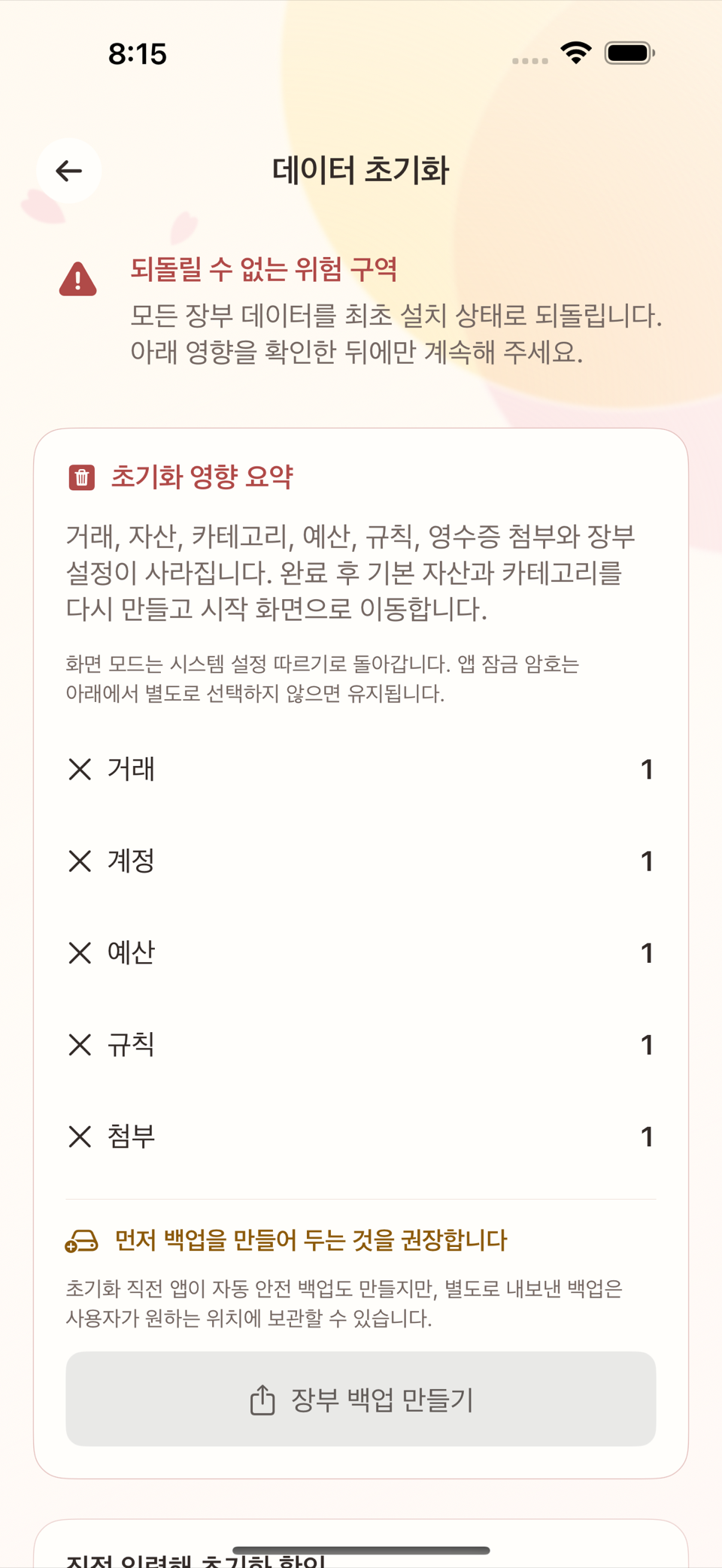
이 작업은 계정·거래·예산·반복 규칙·문자 인식 규칙·영수증을 포함한 모든 것을 지운다. 실행 전에 12장의 백업을 반드시 먼저 만든다.
앱을 완전히 지우기 전에
앱을 기기에서 삭제(언인스톨)하면 iCloud나 서버에 별도 사본이 없으므로 데이터가 함께 사라질 수 있다. 앱을 지우기 전에는 항상 백업 파일을 안전한 곳(iCloud Drive, 다른 기기 등)에 따로 보관해 둔다. 앱 안에는 이런 사전 안내 문구가 없다 — iCloud Drive가 언급되는 유일한 곳은 백업 저장 자체가 실패했을 때 뜨는 재시도 안내뿐이므로, 이 조언은 이 매뉴얼에서만 제공하는 것이며 앱 화면 문구를 그대로 인용한 것이 아니다.
ENGLISH
14. Destructive Operations — What to Do Before Deleting the App, Resetting Data, or Permanently Deleting Accounts and Transactions
Tameio handles most "removals" as closing or archiving rather than deletion (chapters 3 and 5). The three operations below, however, are real deletion that cannot be undone. Always make the backup from chapter 12 first.
Deleting a transaction permanently
Choosing delete on a transaction detail brings up the confirmation "Delete this transaction?"
- The transaction disappears completely, and the balances and statistics involved are recalculated immediately.
- If you were in the middle of unsaved changes, those are lost as well — the wording is "Unsaved changes will also be lost, and this transaction will be permanently deleted. This cannot be undone."
- In every case the confirmation states explicitly that the action cannot be undone.
Deleting an account (asset)
Deleting an account behaves differently depending on whether it has transactions.
- An account with no transactions: after the confirmation "Permanently deletes this account with no transactions. This cannot be undone.", it is deleted straight away.
- An account with transactions: you choose one of two options.
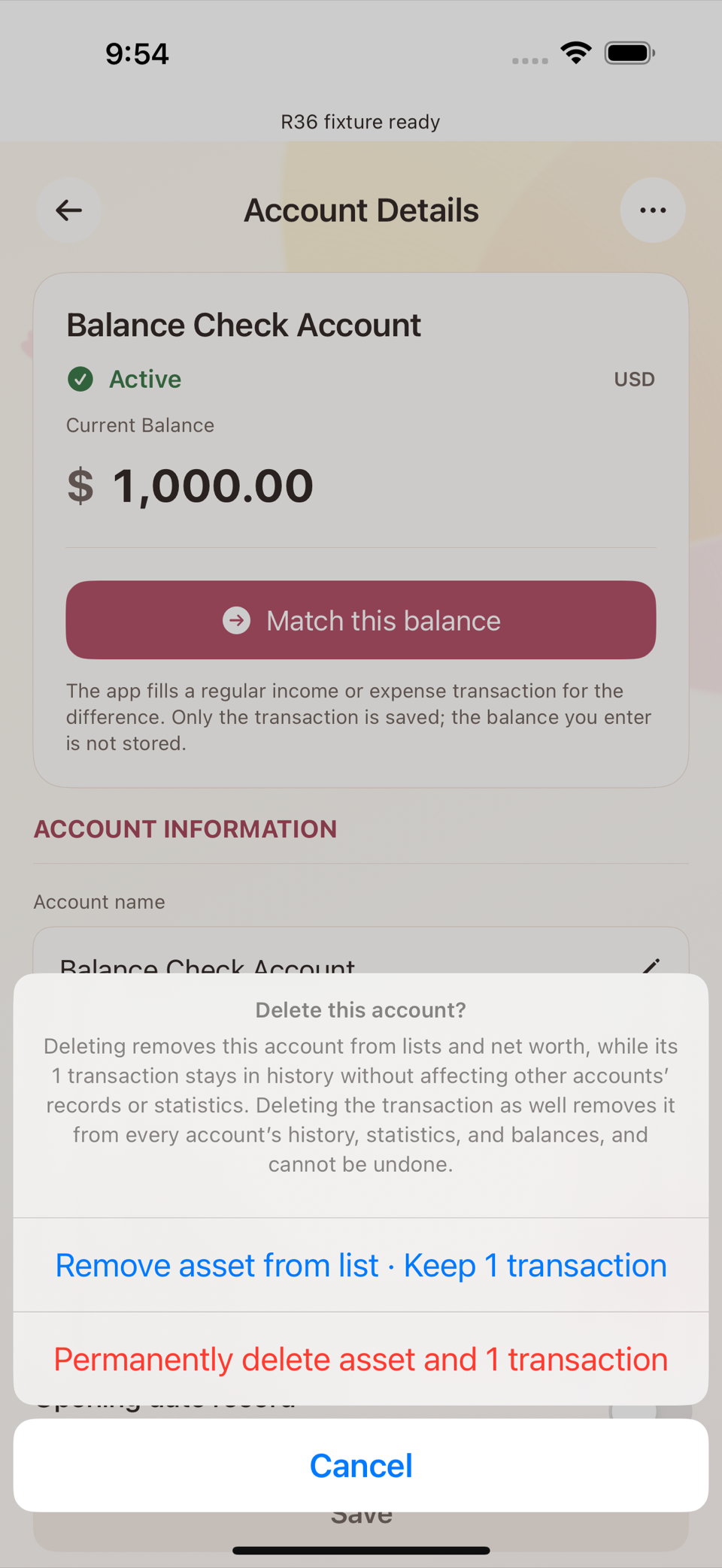
- Remove asset from list · Keep N transactions — the account goes away but the past transaction records stay.
- Permanently delete asset and N transactions — the account and every transaction, tag, and receipt attached to it are removed atomically.
The second option is the most destructive operation in this app. Make sure you really do not need that account's transactions before running it.
Resetting all data
Reset Data in Settings returns all ledger data to its freshly installed state. An "Irreversible Danger Zone" warning appears at the top of the screen, and to actually run it you must type the exact confirmation word into the confirmation field — in English that word is RESET (it is not forgiving about case or spaces). Only then does the Reset All Ledger Data button become available.
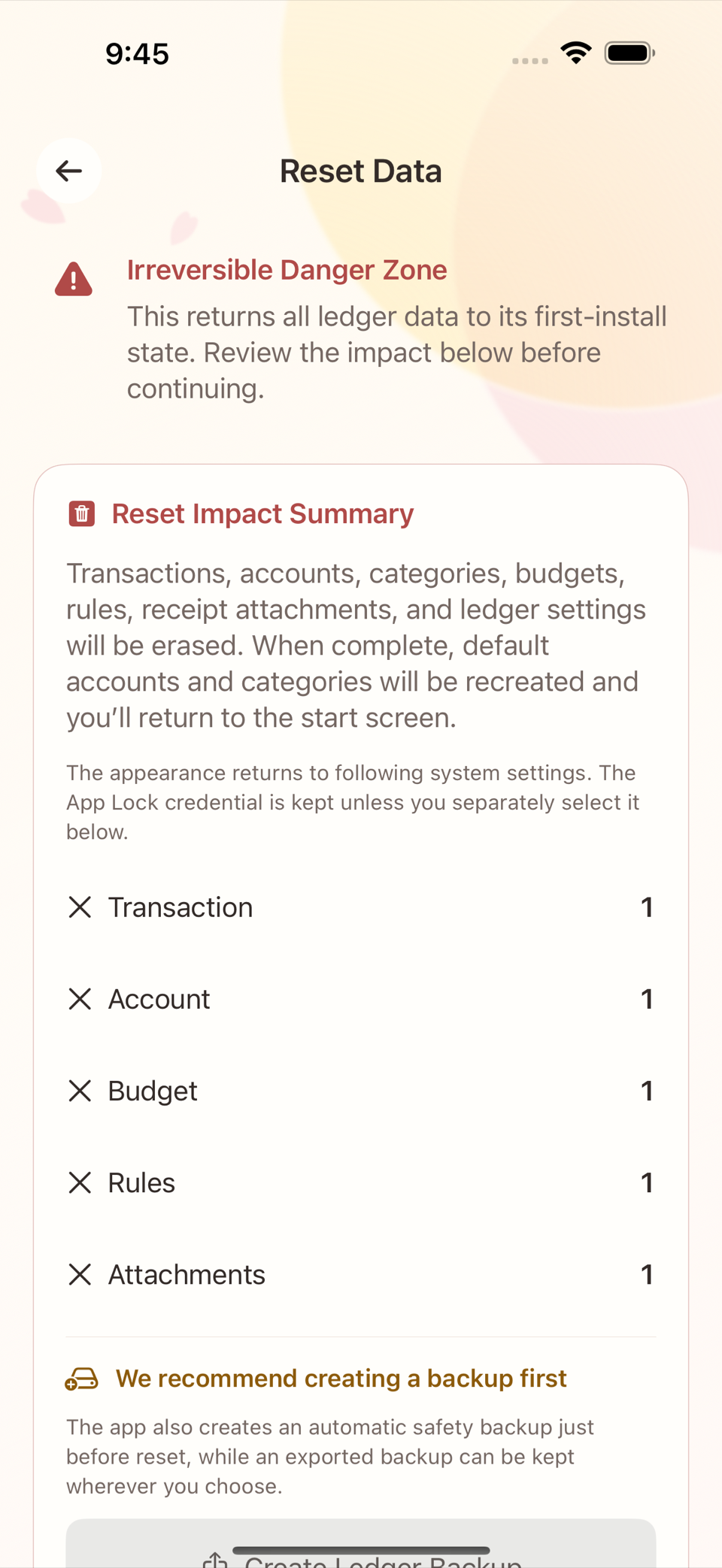
This operation erases everything, including accounts, transactions, budgets, recurring rules, message recognition rules, and receipts. Always make the backup from chapter 12 first.
Before deleting the app entirely
If you delete (uninstall) the app from your device, there is no separate copy on iCloud or any server, so your data can disappear with it. Before removing the app, always keep a backup file somewhere safe (iCloud Drive, another device, and so on). The app itself contains no such advance warning — the only place iCloud Drive is mentioned is the retry notice shown when saving a backup fails. So this advice comes from this manual and is not a quotation of any screen in the app.