PAIDIA STUDIO
12. 백업·복원·새 장부 시작·기기 간 전송
12. 백업·복원·새 장부 시작·기기 간 전송
백업 만들기
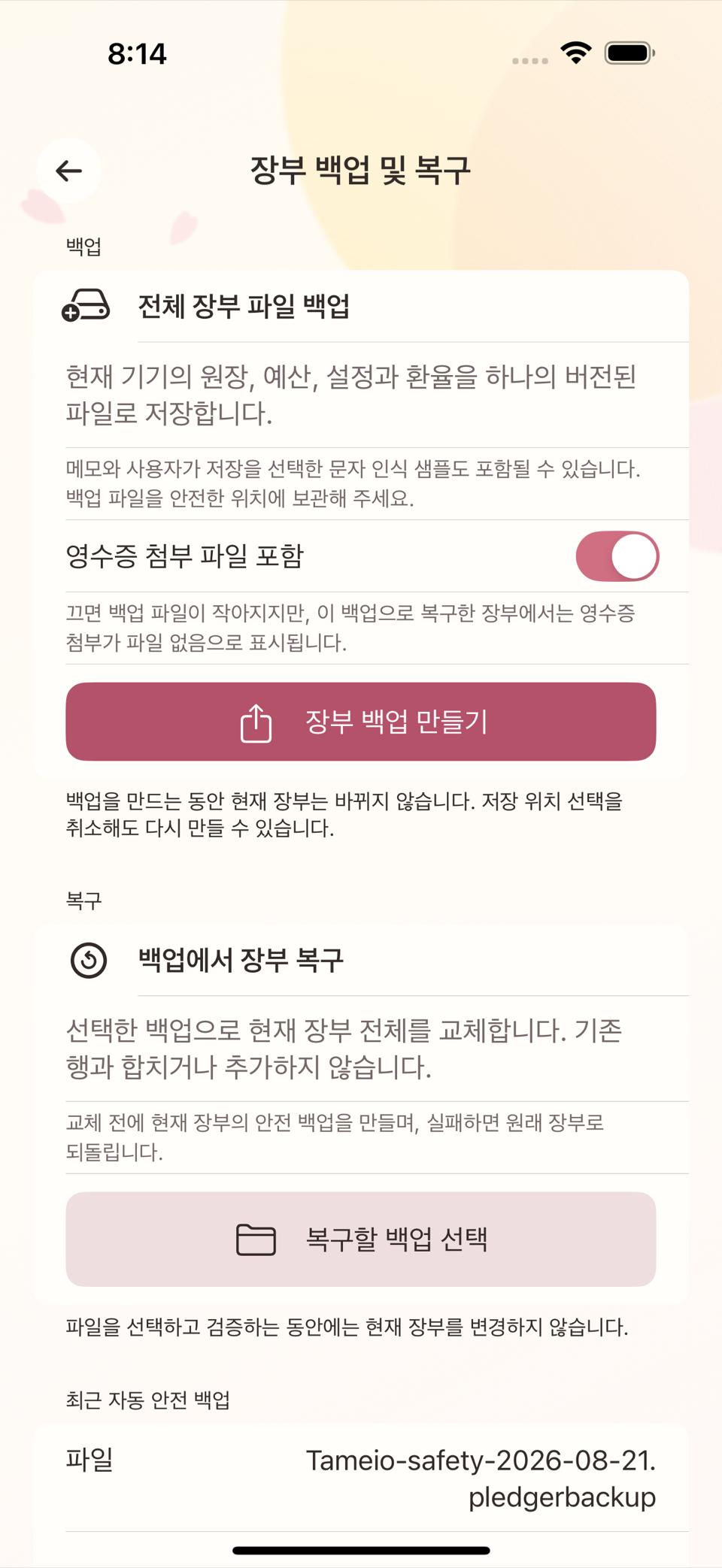
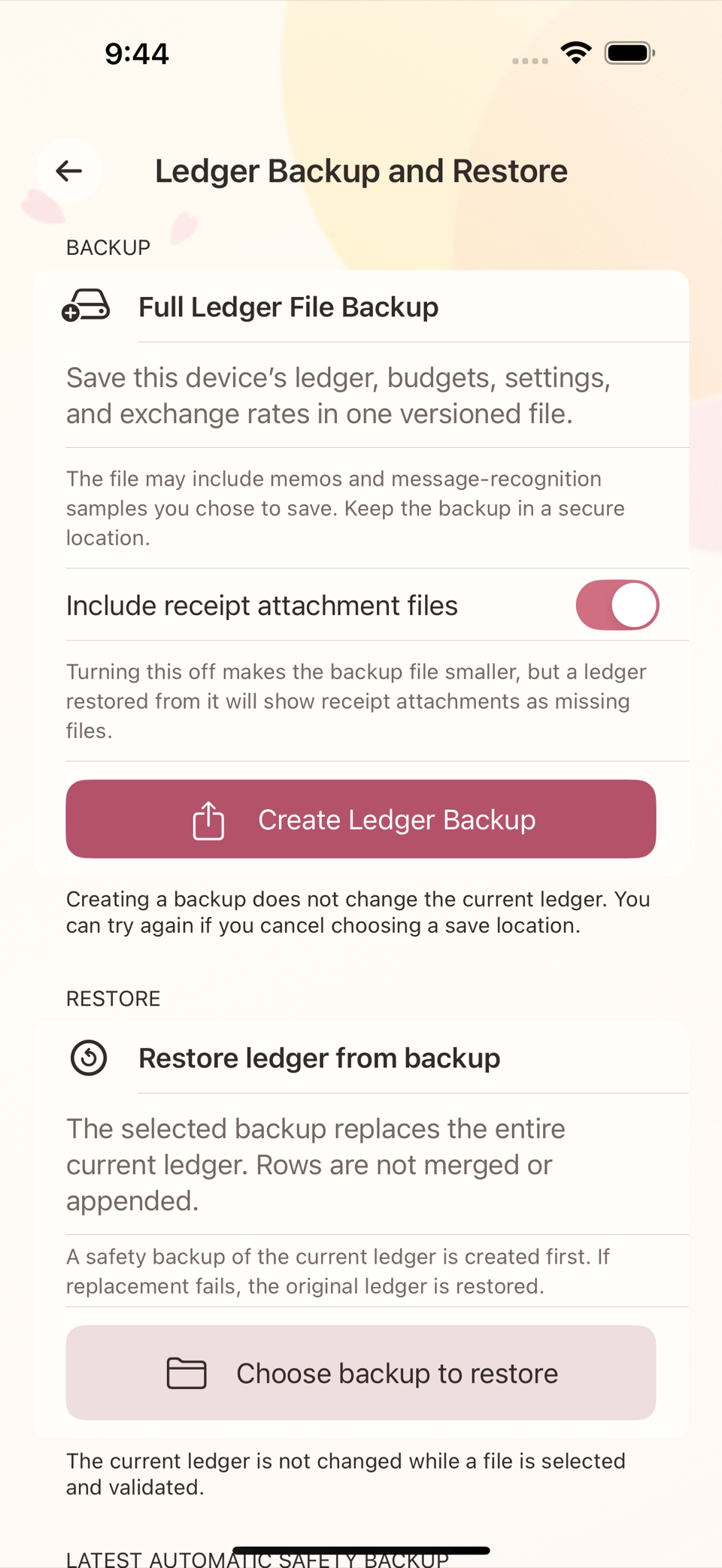
설정의 장부 백업 및 복구 화면에서 장부 백업 만들기를 누르면 지금까지의 모든 데이터를 하나의 백업 파일로 내보낸다. 이미 백업이 있다면 다시 백업 만들기로 최신 상태의 새 백업을 만든다. 백업 파일에는 거래·계정·예산·반복 규칙·문자 인식 규칙과, 사용자가 선택했다면 영수증 첨부까지 포함될 수 있다.
백업에서 복원하기
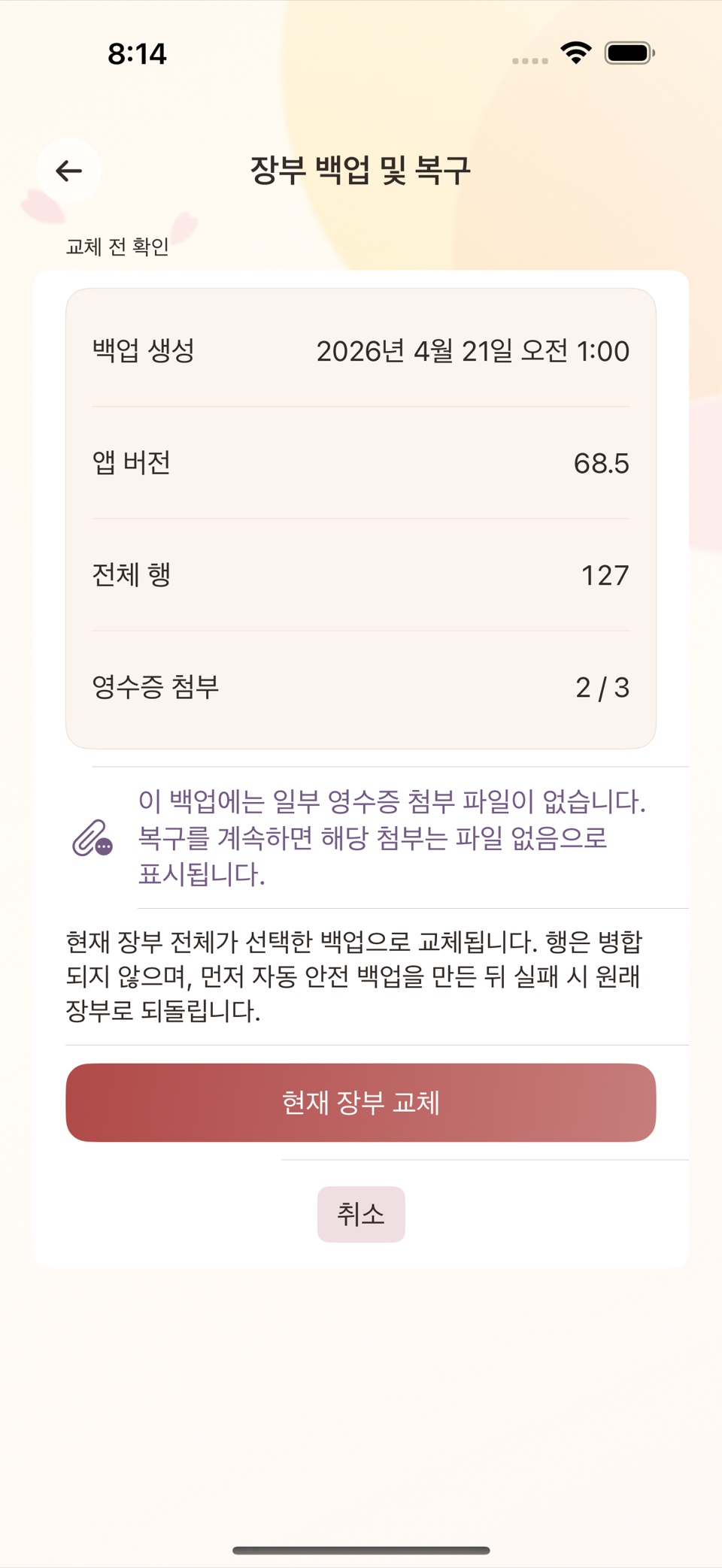
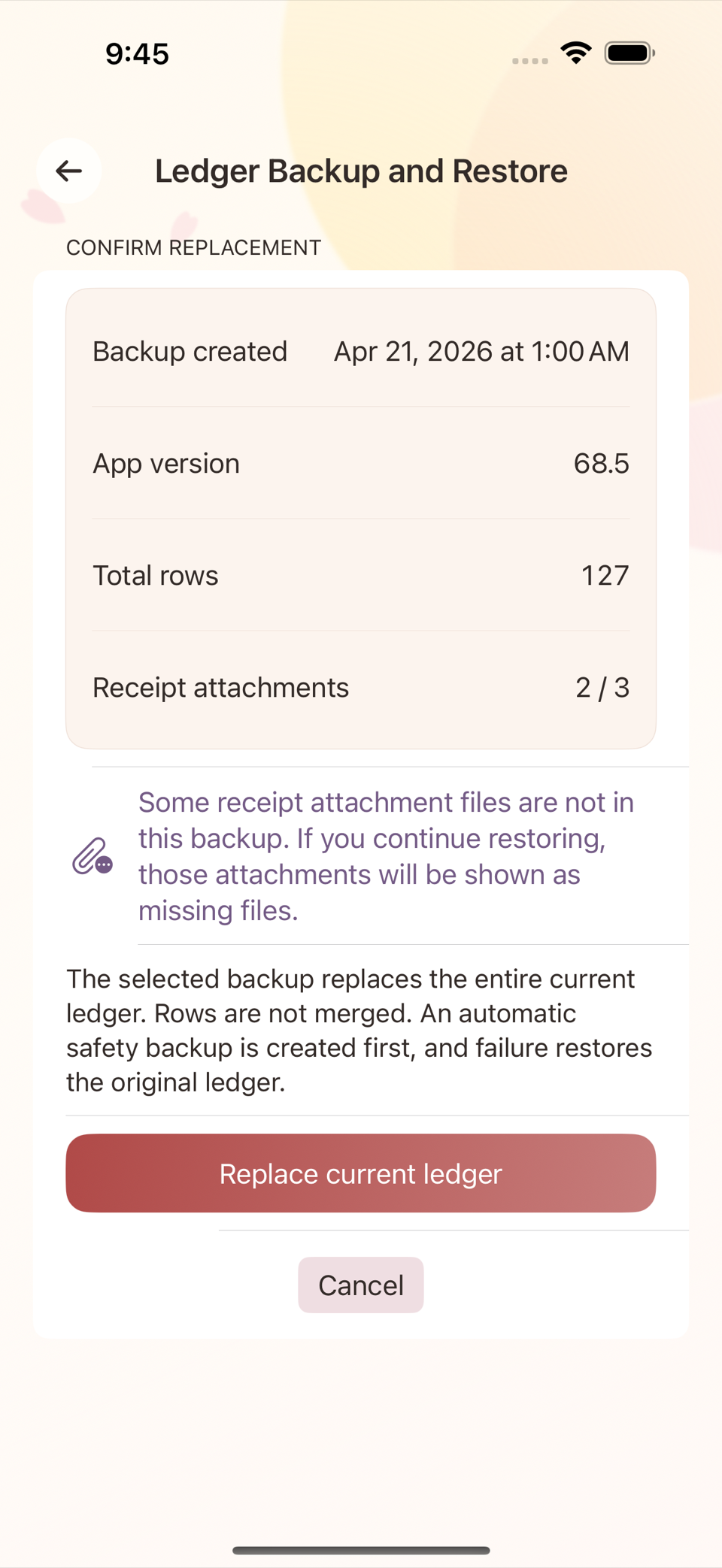
같은 화면의 백업에서 장부 복구를 눌러 백업 파일을 고르고 복구를 실행한다. 복원은 현재 장부를 백업 시점 상태로 되돌리는 작업이므로, 복원을 실행하기 전에 현재 상태의 안전 백업이 자동으로 하나 더 만들어진다 — 복원 결과가 마음에 들지 않으면 그 안전 백업으로 다시 되돌릴 수 있다.
기기 간 전송
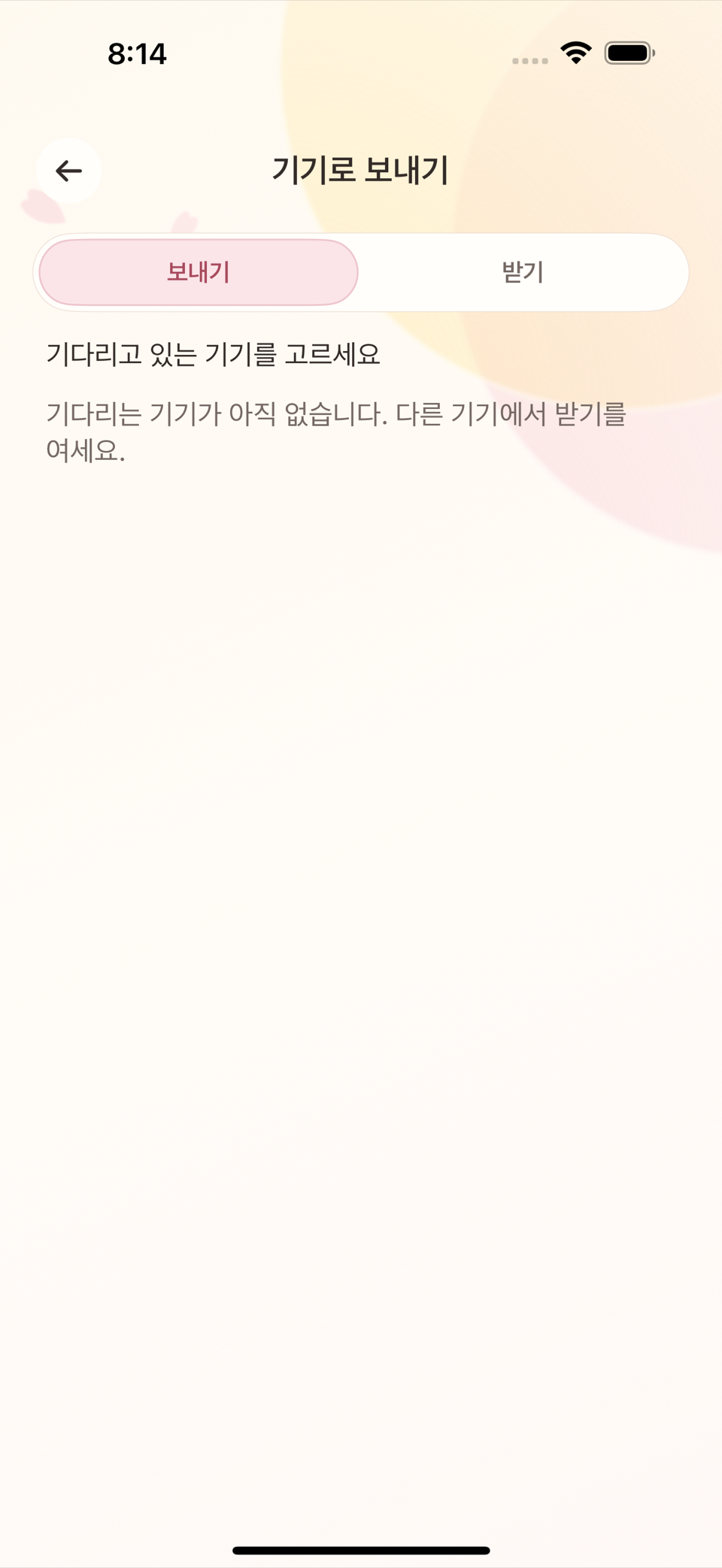
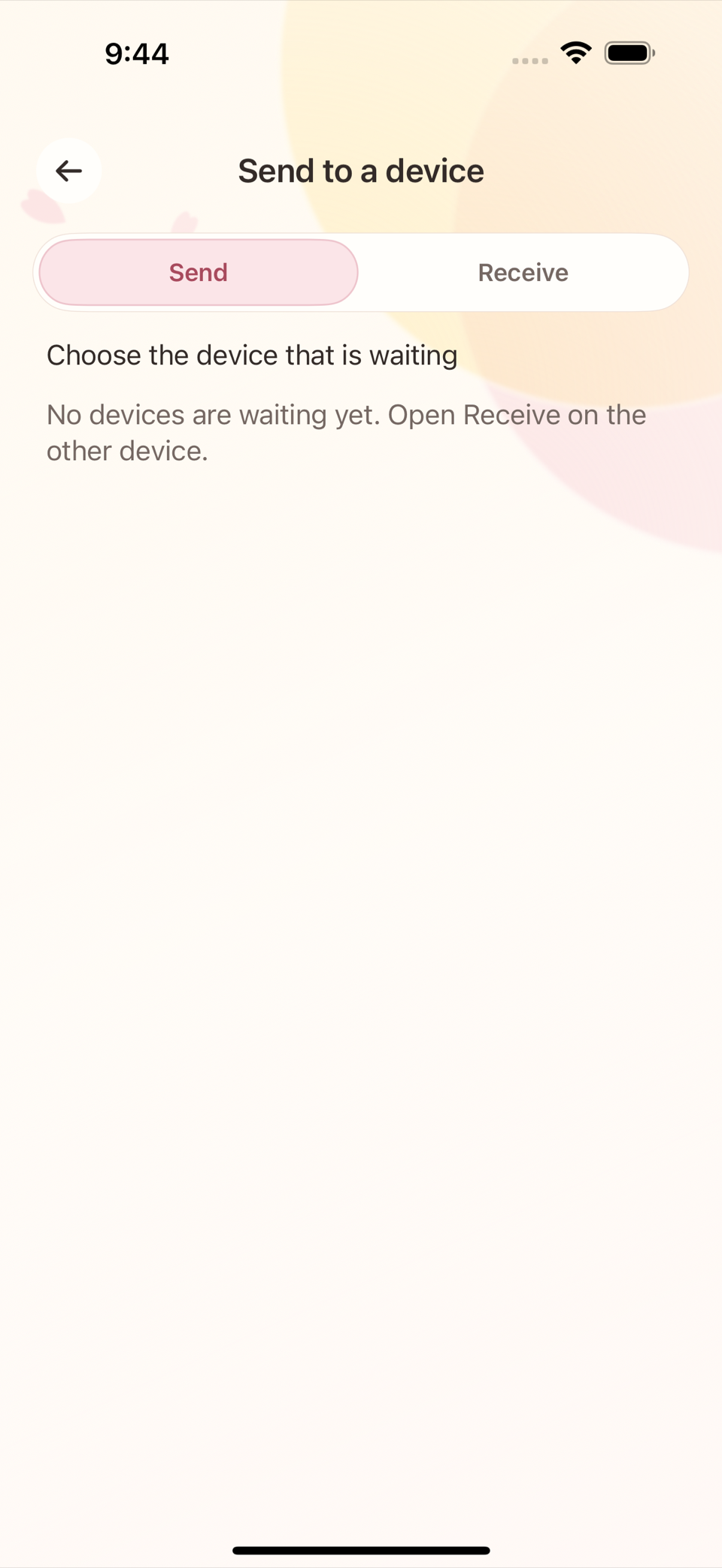
새 기기로 옮기거나 두 기기의 장부를 맞출 때는 기기로 보내기를 사용한다. 전송은 암호화된 채널로 이뤄지며, 전송이 중간에 멈추거나 실패해도 이 기기의 데이터는 그대로 유지된다. 전송이 끝날 때까지 화면을 열어 둬야 한다.
새 장부 시작
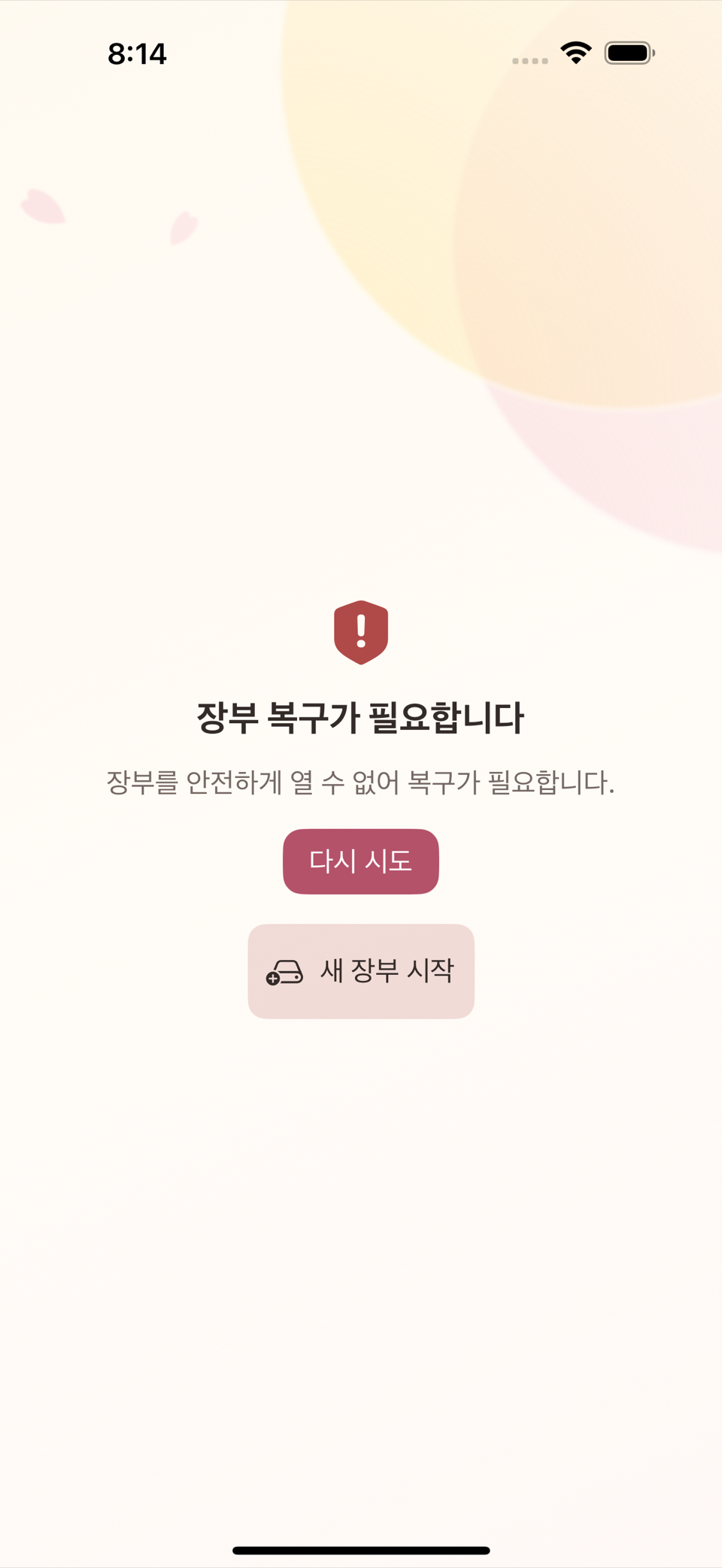
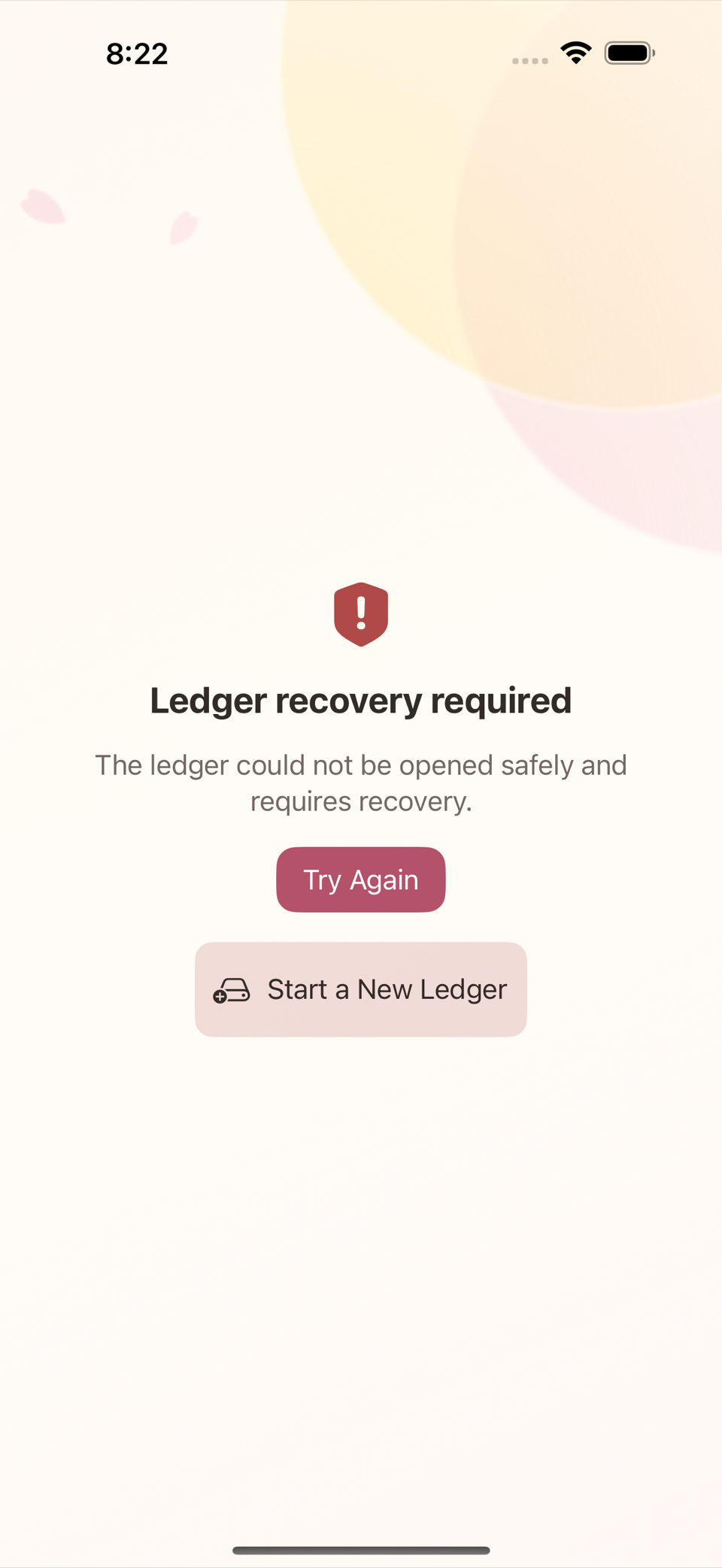
이 항목은 설정 화면 안에서 평소에 누를 수 있는 버튼이 아니다. 장부를 정상적으로 열지 못했을 때만 나타나는 별도의 "복구 필요" 화면에서 "다시 시도"와 나란히 있는 두 번째 버튼이다. 여기서 "새 장부 시작"을 누르면 기존 장부는 그 자리에서 사라지는 것이 아니라 복구용 보관본으로 남고, 진행 전 확인 문구를 입력해야 하는 별도 확인 화면이 한 번 더 뜬다.
고장이 나서가 아니라 일부러 빈 장부로 다시 시작하고 싶다면, 위 경로를 기다릴 필요 없이 14장 위험 작업에서 설명하는 데이터 초기화(설정에서 바로 접근)를 사용한다 — 두 경로는 도달 화면도 도달 조건도 다르며, 어느 쪽이든 실행 전 반드시 필요한 백업을 먼저 만들어 둔다.
ENGLISH
12. Backup, Restore, Starting a New Ledger, and Device Transfer
Creating a backup
On the Ledger Backup and Restore screen in Settings, tap Create Ledger Backup to export everything recorded so far as a single backup file. If a backup already exists, Create Backup Again makes a new one from the current state. A backup file can contain transactions, accounts, budgets, recurring rules, and message recognition rules — and, if you choose, receipt attachments too.
Restoring from a backup
Tap Restore ledger from backup on the same screen, pick a backup file, and run Restore. Restoring rolls the current ledger back to the state it was in at the time of the backup, so before it runs, one more safety backup of the current state is created automatically — if you do not like the result of the restore, you can go back to that safety backup.
Device transfer
To move to a new device, or to bring two devices' ledgers into line, use Send to a device. The transfer runs over an encrypted channel, and if it stops or fails partway, the data on this device is left exactly as it was. Keep the screen open until the transfer finishes.
Starting a new ledger
This is not a button you can press from the Settings screen in normal use. It is the second button, next to "Try Again", on a separate recovery screen that appears only when the ledger could not be opened normally. Choosing to start a new ledger there does not make the existing ledger vanish on the spot — it is kept as a recovery copy — and one more confirmation screen appears first, requiring you to type a confirmation phrase before it proceeds.
If you want to start from an empty ledger on purpose rather than because something broke, you do not need to wait for the route above. Use Reset Data (reachable directly from Settings), covered in chapter 14 — the two routes differ both in the screen you reach and in the conditions that get you there, and either way you must make the backup you need before running it.