PAIDIA STUDIO
10. 통계·보고서 읽기와 내보내기
10. 통계·보고서 읽기와 내보내기
통계 탭
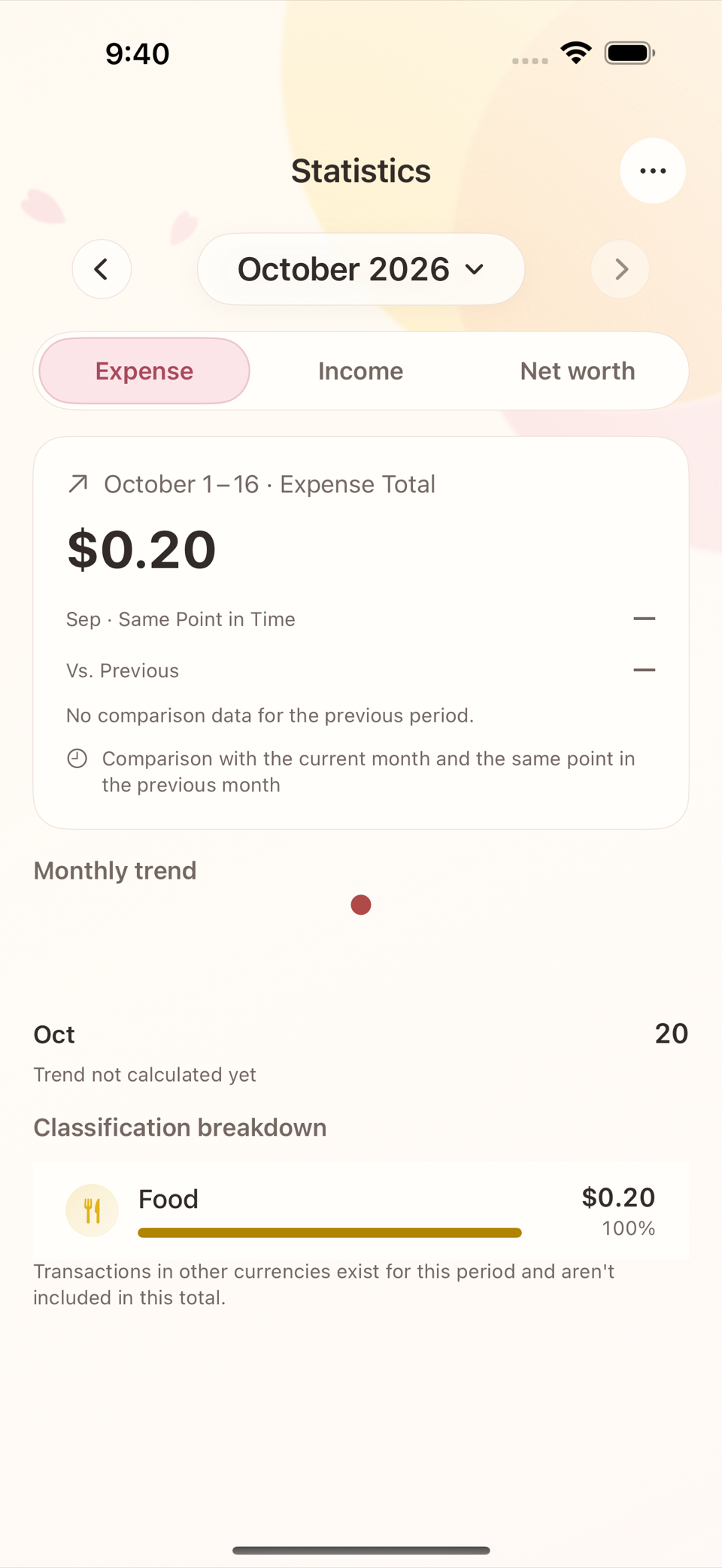
통계 탭은 지출 · 수입 · 순자산 세 관점을 상단 세그먼트로 전환하며 본다. 우측 상단 (또는 상단 바)에서 통계 기간 선택을 열어 볼 기간(주·월·연 등)을 바꿀 수 있다.
- 지출/수입 관점은 분류별 비중과 전월 대비 증감을 보여준다.
- 순자산 관점은 자산에서 부채(신용카드 미지급금 등)를 뺀 값의 추이를 보여준다.

보고서 화면
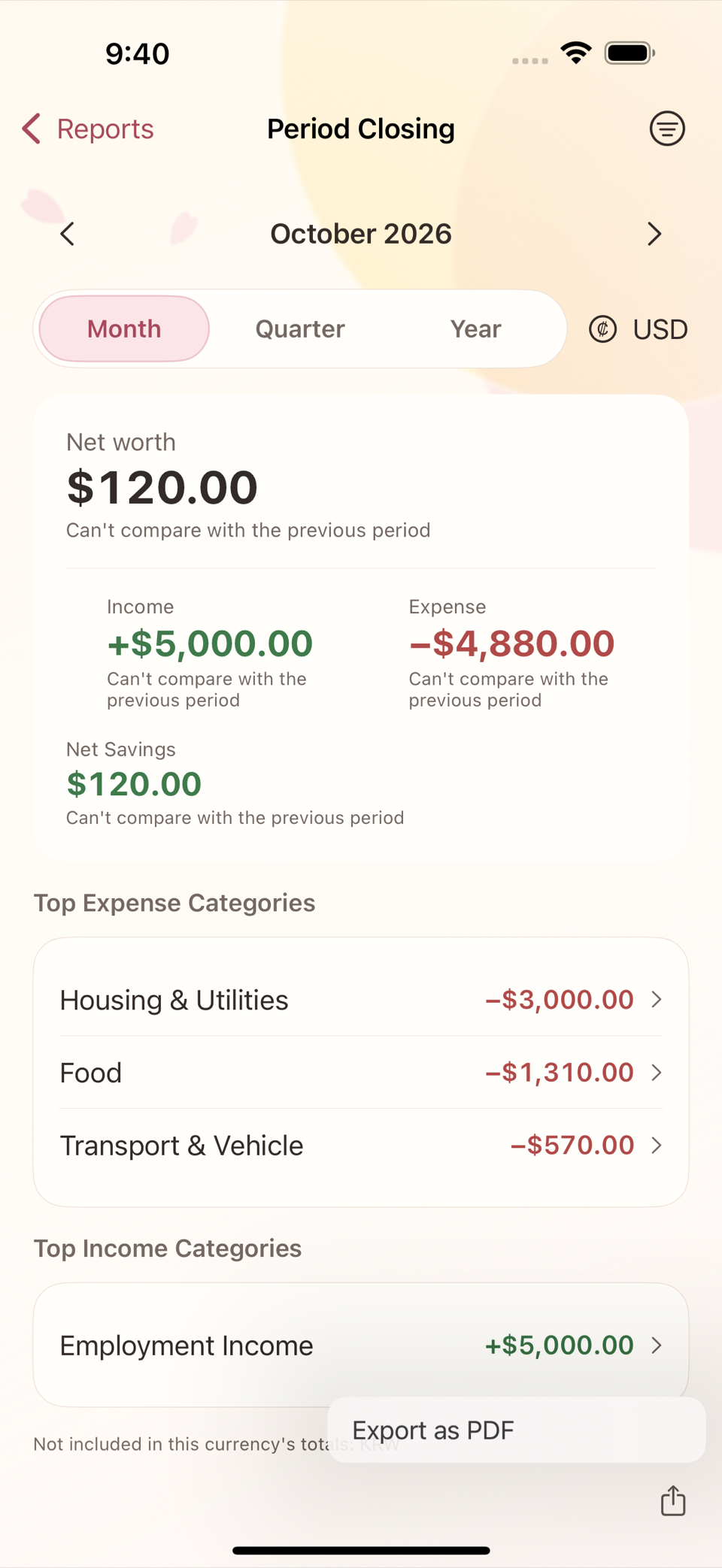
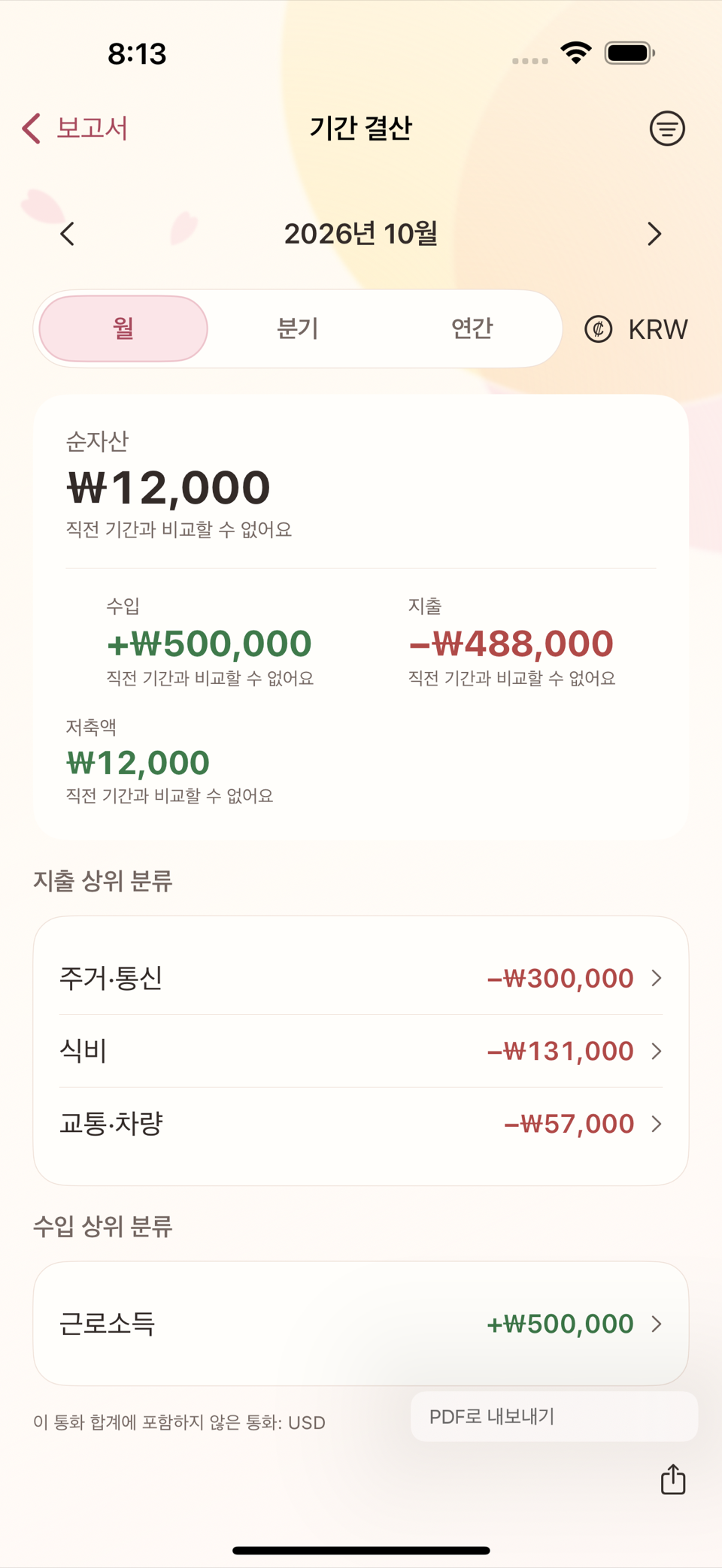
보고서 화면에는 네 가지 재무 보고서가 있다.
| 보고서 | 보여주는 것 |
|---|---|
| 기간 결산 | 한 예산 기간이 끝난 뒤의 배정·사용·이월 결과 |
| 분류 상세 | 카테고리별 지출·수입 상세 내역 |
| 예산 실적 | 예산 묶음별 배정 대비 실제 사용 실적 |
| 계정 보고서 | 계정별 잔액·거래 흐름 |
더 깊이 들여다보고 싶다면 고급 감사 섹션의 회계 기록에서 실제 분개(원장) 내역을 거래 단위로 확인할 수 있다. 평소에는 볼 필요가 없는 화면이지만, 숫자가 어떻게 계산됐는지 끝까지 추적하고 싶을 때 유용하다.

기간 이동과 세부 필터
네 보고서 화면 모두 상단에 같은 구조의 기간 이동 막대가 있다 — 좌우 화살표로 이전/다음 기간으로 옮기고, 월 · 분기 · 연간 탭으로 단위를 바꾸며, 여러 통화를 쓴다면 통화 선택 메뉴도 같은 줄에 있다.
더 좁혀 보고 싶으면 화면 우측 상단의 필터 아이콘을 눌러 시트를 연다. 이 시트에서 고를 수 있는 것은 거래 종류(지출/수입/이체 등), 계정(자산·부채·수입·지출 계정 중 여러 개 동시 선택), 태그(태그를 하나도 안 썼다면 이 항목 자체가 안 보인다), 가맹점(정확히 일치하는 이름으로 검색)이다. 카테고리 단위로 좁히는 필터는 없다 — 카테고리별로 보고 싶다면 "분류 상세" 보고서 자체가 그 역할을 한다.
관련 거래에서 원본까지 확인하기
보고서의 분류·예산 묶음·계정·거래처 항목을 누르면 관련 거래 목록이 열린다. 각 행은 거래 제목, 종류·분류·계정, 추가 메모 미리보기, 그 보고서 항목에 해당하는 금액만 보여 준다. 예를 들어 분할 거래이면 거래 전체 금액이 아니라 선택한 예산 묶음의 몫만 나온다.
행을 누르면 원래 거래 상세를 조회 전용으로 연다. 이 경로에서는 수정·복제·삭제할 수 없으므로, 보고서를 살펴보다 원본 거래를 바꾸는 실수를 막아 준다. 뒤로 가면 같은 관련 거래 목록으로 돌아온다.
PDF·CSV로 내보내기
보고서 화면 상단의 내보내기 버튼을 누르면 PDF로 내보내기 또는 CSV로 내보내기를 고를 수 있다. PDF는 사람이 읽기 좋은 요약본, CSV는 표 계산 프로그램에서 다시 분석하고 싶을 때 적합하다.
ENGLISH
10. Reading and Exporting Statistics and Reports
The Statistics tab
The Statistics tab switches between three perspectives — spending · income · net worth — using the segmented control at the top. Open Select Statistics Period from the top right (or the top bar) to change the period you are looking at (week, month, year, and so on).
- The spending and income perspectives show the share taken by each classification and the change against the previous month.
- The net worth perspective shows the trend of assets minus liabilities (credit card balances owed and so on).
The Reports screen
The Reports screen holds four financial reports.
| Report | What it shows |
|---|---|
| Period Closing | The allocation, spending, and carryover results after a budget period ends |
| Classification Detail | Detailed spending and income by category |
| Budget Performance | Actual spending against the allocation, per budget group |
| Account Report | Balances and transaction flow, per account |
If you want to look deeper, Accounting Records in the Advanced Audit section shows the actual double-entry postings transaction by transaction. You do not need this screen day to day, but it is useful when you want to trace exactly how a figure was calculated.

Moving between periods, and detailed filters
All four report screens have the same period bar at the top — arrows move to the previous or next period, the month · quarter · year tabs change the unit, and if you use several currencies the currency menu sits on the same row.
To narrow things further, tap the filter icon in the top right to open a sheet. What you can choose there is transaction kind (expense, income, transfer, and so on), account (several asset, liability, income, or expense accounts at once), tag (if you have never used a tag, this item is not shown at all), and merchant (searched by exact name). There is no filter that narrows by category — if you want a per-category view, the "Classification Detail" report is itself that view.
From Related Transactions to the source transaction
Tap a classification, budget group, account, or merchant in a report to open Related Transactions. Each row identifies the transaction, its kind, classification and account, previews Additional Memo, and shows only the amount that belongs to the report item you selected. For example, a split transaction shows the selected budget group's share, not the full transaction amount.
Tap a row to open the original transaction detail in read-only mode. Edit, duplicate, and delete are unavailable on this route, so investigating a report cannot accidentally change the source transaction. Going back returns to the same Related Transactions list.
Exporting to PDF or CSV
Tap Export at the top of a report screen and choose Export as PDF or Export as CSV. PDF suits a summary meant to be read by a person; CSV suits reanalysis in a spreadsheet program.