PAIDIA STUDIO
9. 영수증 촬영·OCR·첨부
9. 영수증 촬영·OCR·첨부
영수증을 첨부한다
입력 화면의 영수증 추가 버튼을 누르면 세 가지 방법 중 하나를 고를 수 있다.
- 카메라로 스캔 — 그 자리에서 영수증을 촬영한다.
- 사진 보관함 — 이미 찍어둔 사진을 고른다.
- 파일 선택 — 스캔 파일이나 PDF 등을 고른다.
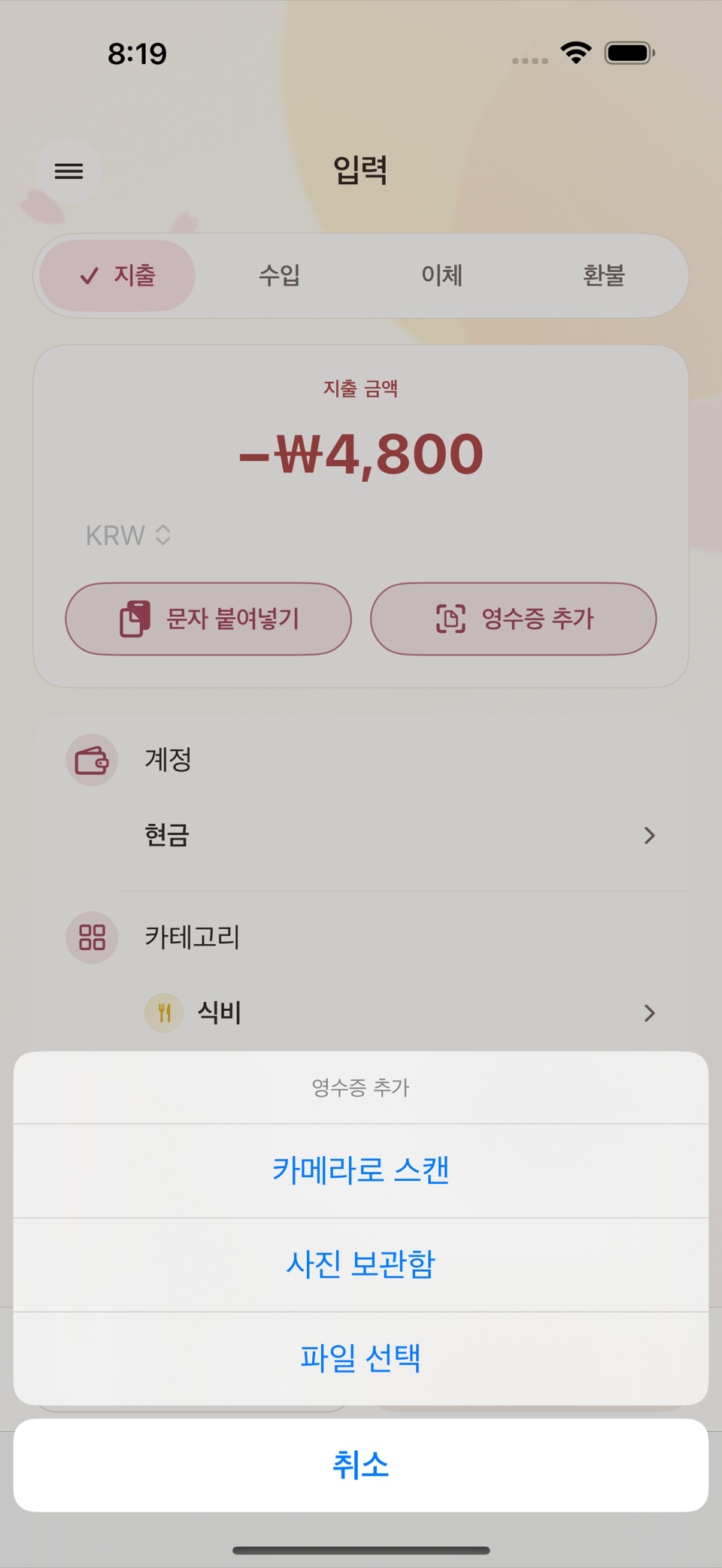
첨부한 영수증은 영수증 카드에 썸네일로 보이고, 입력 화면과 거래 상세 어디서든 다시 열어 확인할 수 있다.
다른 앱에서 영수증을 바로 공유하기
사진 보관함·파일 앱·이메일 등에서 영수증 이미지를 선택하고 공유 → Tameio를 고르면, 타미오가 새 거래 입력을 열고 이미지를 영수증 초안으로 받는다. 한 번에 이미지만 1~20장을 보낼 수 있다. 문자와 이미지를 같이 선택했다면 각각 따로 공유한다.
공유 직후에 앱이 자동으로 열리지 않아도 영수증은 임시 보관된다. 타미오를 직접 열면 다음 새 거래 입력에서 이어진다. 그래도 거래는 저장을 누르기 전까지 장부에 기록되지 않는다.
온디바이스 OCR로 자동 채움
영수증 사진을 첨부하면 기기 안에서(서버로 전송하지 않고) 총액·날짜·가맹점 같은 값을 읽어 입력 폼에 자동으로 채운다. 자신 없는 값은 필드 테두리가 강조색으로, 자신 있게 읽은 값은 다른 강조색으로 표시되고 각각 "확인 필요"/"자동 인식" 캡슐 라벨이 붙는다(아이콘이 아니라 테두리 색과 짧은 문구로 구분한다). 인식에 실패해도 첨부된 영수증은 그대로 남고, 나머지 입력은 수기로 계속할 수 있다.
상품 상세 — 영수증 속 개별 품목
영수증에 찍힌 개별 상품(품목·수량·단가)까지 남기고 싶으면 상품 상세 화면에서 품목을 확인·수정하거나 직접 추가한다. 여러 카테고리에 걸친 장보기라면 품목을 분류별로 나눠 4장의 분할 입력과 연결할 수 있다.
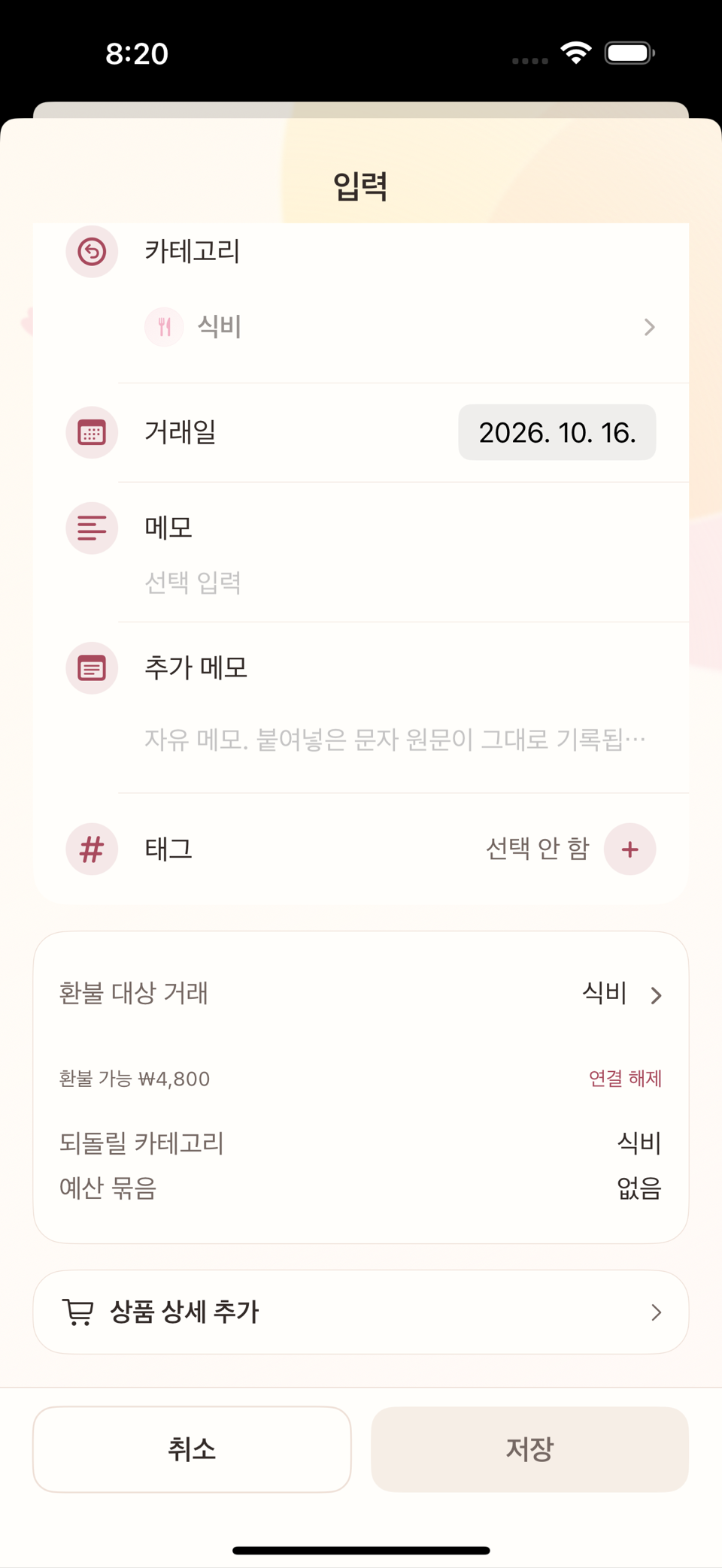
중요: 상품 항목은 회계 계산의 기준이 아니라 참고 정보다. 실제 잔액·예산·통계 계산은 항상 거래의 금액을 기준으로 하며, 상품 목록의 합계가 이를 대신하지 않는다.
상품명 검색과 과거 구매가
내역 검색은 거래 메모·계정명뿐 아니라 영수증에 저장한 상품명도 찾는다. iPhone에서는 내역 상단의 카트 버튼 상품 가격 찾기를 누르면 상품별 최근 구매, 구매 횟수와 개당 가격(없으면 구매금액)을 보여 준다. 상품을 열면 구매 이력을 날짜순으로 보고, 각 행에서 원래 거래 상세로 들어갈 수 있다. iPad에서는 내역 검색 영역 옆의 같은 이름의 버튼을 쓴다.
개인정보 주의
영수증 사진에는 매장 위치, 결제 카드 뒷자리, 때로는 실명이 함께 찍혀 있을 수 있다. 지원 문의나 공개 캡처에 영수증 원본 이미지를 그대로 첨부하지 않는다.
ENGLISH
9. Receipts — Capture, OCR, and Attachments
Attaching a receipt
Tap Add receipt on the entry screen and choose one of three ways.
- Scan with camera — photograph the receipt on the spot.
- Photo library — pick a photo you have already taken.
- Choose file — pick a scanned file, a PDF, and so on.
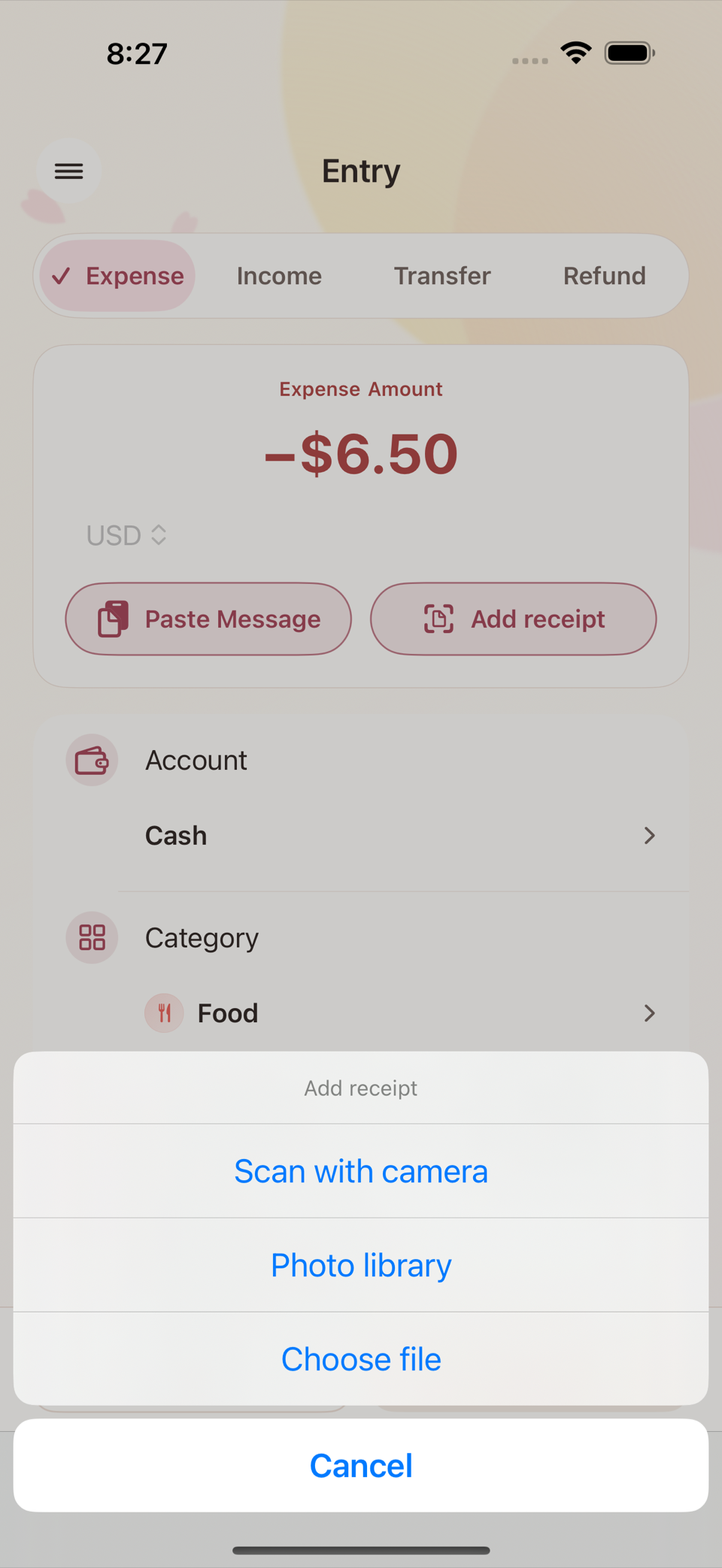
An attached receipt appears as a thumbnail in the Receipt card, and you can reopen it from either the entry screen or the transaction detail.
Sharing a receipt directly from another app
Select receipt images in Photos, Files, Mail, or another app, then choose Share → Tameio. Tameio opens a new transaction entry and receives the images as a receipt draft. You can send 1–20 images at a time, as an image-only share. If text and images are selected together, share them separately.
If Tameio does not open immediately, the receipt is still held temporarily. Open Tameio yourself and it continues in the next new transaction entry. The transaction is still not recorded in the ledger until you review the draft and tap Save.
On-device OCR fills the form for you
When you attach a photo of a receipt, the total, date, and merchant are read on the device — nothing is sent to a server — and filled into the entry form. Values the app is unsure about get a highlighted field border in one accent color, values it read confidently get another, and each is labelled with a Needs attention or Auto-filled capsule. (The distinction is made with border color and a short label, not icons.) If recognition fails, the attached receipt still stays where it is and you can carry on filling in the rest by hand.
Item details — individual items on the receipt
If you want to keep the individual products on a receipt (item, quantity, unit price), use the Item details screen to review, correct, or add them yourself. For a shopping trip that spans several categories you can split the items by classification and connect them to the split entry from chapter 4.
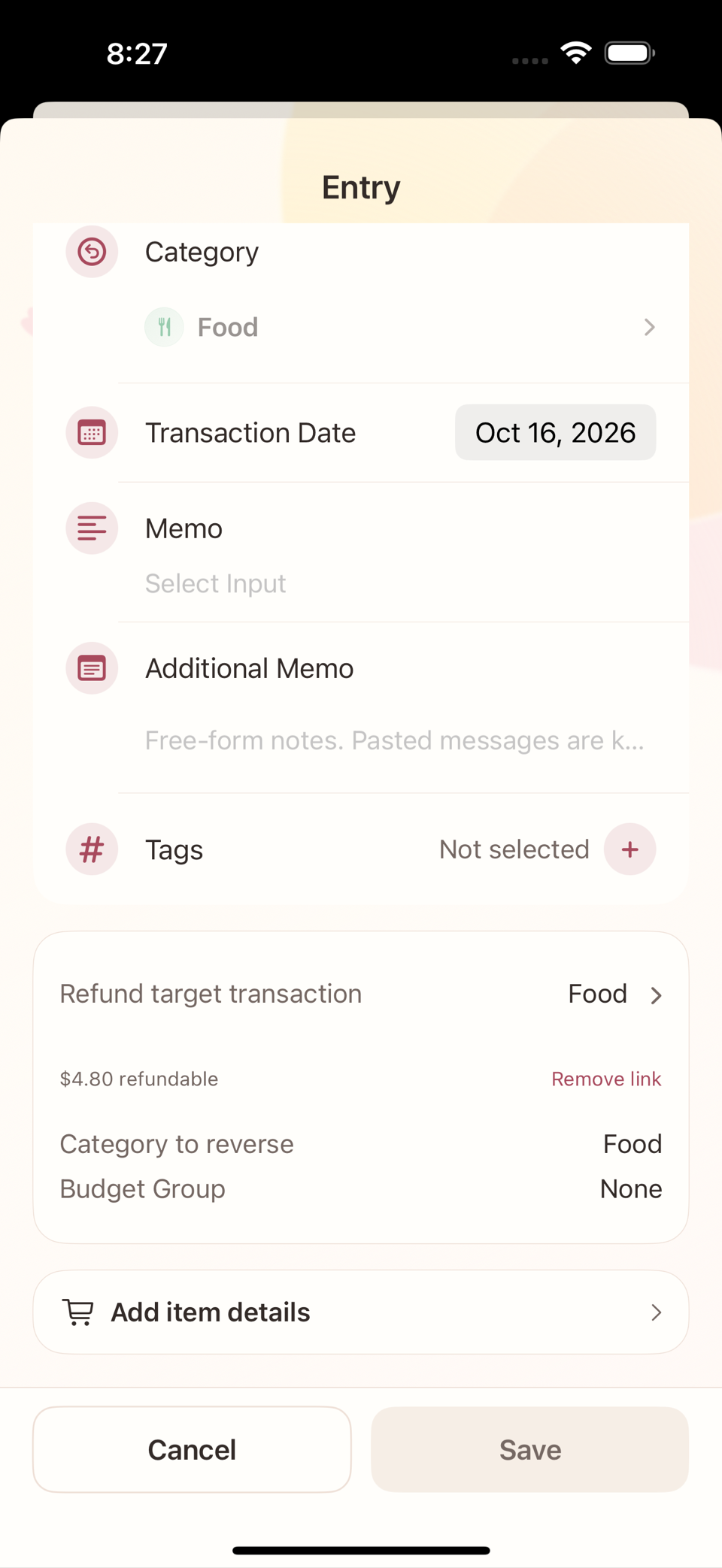
Important: items are reference information, not the basis of any accounting calculation. Balances, budgets, and statistics are always calculated from the transaction amount; the sum of the item list never replaces it.
Searching product names and past prices
Ledger search includes product names saved on receipts, as well as transaction memos and account names. On iPhone, tap the cart button Find product prices at the top of Ledger. It groups saved items by product and shows the latest purchase, purchase count, and unit price (or purchase total when no unit price is available). Open a product to see its Purchase history by date, then open any row to return to the original transaction detail. On iPad, use the button with the same name beside the Ledger search field.
Privacy note
A photo of a receipt can also capture the store location, the last digits of the card used, and sometimes a real name. Do not attach the original receipt image to a support request or to any screenshot you share publicly.