PAIDIA STUDIO
8. 문자 붙여넣기와 문자 인식 규칙 설정 실전 예제
8. 문자 붙여넣기와 문자 인식 규칙 설정 실전 예제
카드사·은행에서 오는 승인/입출금 문자를 그대로 붙여넣으면 금액·거래처·날짜 같은 값을 수동 입력 없이 채울 수 있다. 이 장에서는 이미 지원되는 형식을 확인하는 방법과, 지원되지 않는 새 형식을 위해 문자 인식 규칙을 직접 만드는 방법을 다룬다.
개인정보 경계부터 확인한다
타미오는 문자함을 직접 읽지 않는다. 사용자가 알림·문자 앱에서 직접 복사해 붙여넣거나, 선택한 텍스트를 공유 메뉴의 Tameio로 보낸 경우에만 처리한다. 그 텍스트는 기기 밖으로 전송되지 않는다. 규칙을 만들 때 넣는 sample 문자도 규칙의 참고 자료로 로컬에 저장될 뿐, 서버로 보내지지 않는다.
1단계 — 지원되는 형식은 그대로 붙여넣는다
입력 화면에서 카드 승인/계좌 입출금 문자를 붙여넣거나 문자 앱의 공유 메뉴에서 Tameio를 고르면, 이미 등록된 규칙과 일치할 경우 금액·거래처·날짜 등이 자동으로 채워진다. 문자 원문은 추가 메모에 줄바꿈 그대로 남아 분석 결과와 나중에 대조할 수 있다. 자동으로 저장되지는 않는다 — 채워진 값을 확인하고 저장 버튼을 눌러야 거래가 등록된다.
2단계 — 인식되지 않는 형식은 새 규칙을 만든다
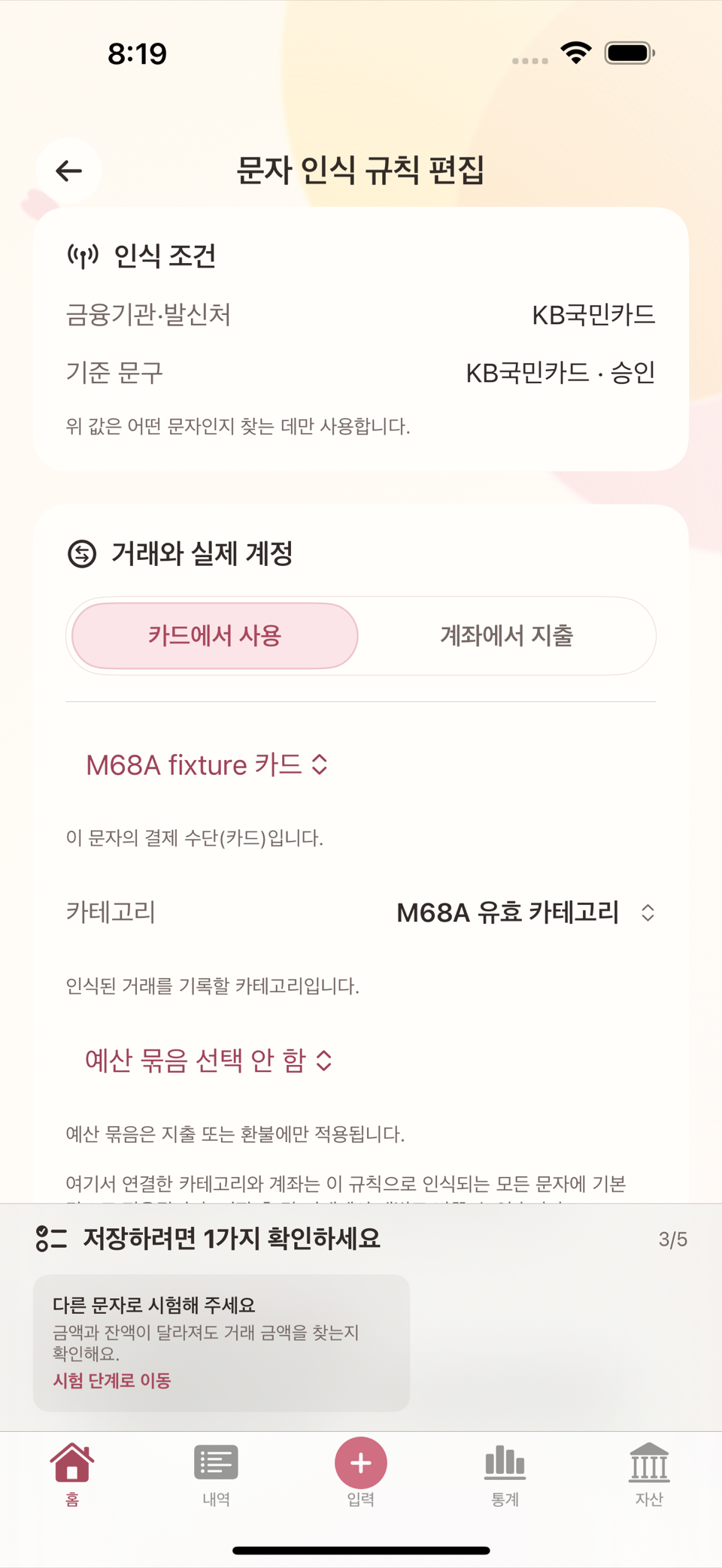
새로운 카드사나 낯선 문구 형식의 문자는 자동으로 채워지지 않을 수 있다. 이때 상단 메뉴에서 연 관리 화면의 문자 인식 규칙으로 들어가, 화면 우측 상단 메뉴에서 문자 인식 규칙 추가를 선택한다.
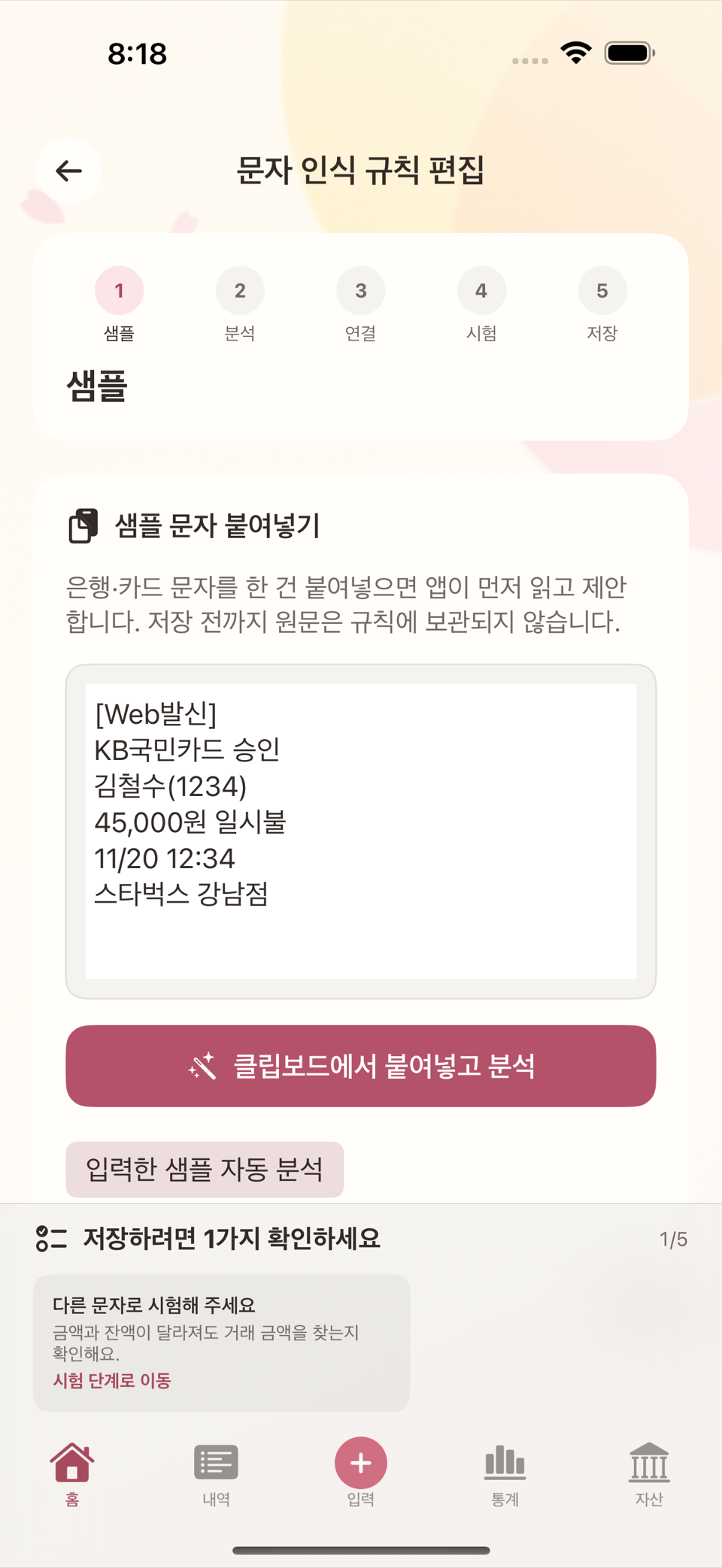
예시 문자(민감정보 제거, 실제 값 아님):
[Web발신]
예시카드(1234) 승인
12,000원 일시불
09/07 12:34
가맹점: 예시카페- 규칙 추가 화면에 위 예시 문자를 sample로 넣는다.
- 안내에 따라 금액(12,000), 날짜(09/07), 거래처(예시카페)에 해당하는 부분을 지정한다.
- 이 문자가 어떤 거래 유형(지출/카드대금 등)에 해당하는지, 기본 카테고리와 결제수단(예시카드)을 지정한다.
고급 설정 — 자동 분석이 엉뚱한 곳을 잡았을 때
자동 분석 단계 맨 아래에 고급 설정이 접힌 채로 있다. 펼치지 않아도 규칙은 만들어진다 — 화면 안내 그대로 "일반 흐름에서 자동 제안한 값을 세밀하게 조정할 때만" 쓰는 곳이다.
어떤 문자에 이 규칙을 걸지 — 인식 조건
| 칸 | 뜻 |
|---|---|
| 필수 단어 · 한 줄에 하나 | 여기 적은 단어가 전부 문자 안에 있어야 규칙이 걸린다 |
| 제외 단어 · 한 줄에 하나 | 하나라도 있으면 이 규칙을 적용하지 않는다 |
| 단어 순서 · 예: 입금 > 거래금액 | 한 줄이 한 묶음이고, > 로 나눈 단어가 그 순서대로 나와야 한다 |
세 칸 모두 한 줄에 하나씩 적는다. 알아둘 점:
- 정규식이 아니다. 적은 글자가 문자 안에 그대로 들어 있는지만 본다.
- 대소문자와 악센트를 구별한다.
CARD와card는 서로 다른 단어로 친다. - 필수 단어와 단어 순서 중 최소 하나는 채워야 한다. 둘 다 비우면 "이 문자를 구분할 기준이 필요합니다."로 저장이 막힌다.
- 단어 순서는 최대 4줄, 한 줄에 단어 2~8개까지다. 세 칸을 합쳐 서로 다른 단어 16개를 넘길 수 없다.
값을 어디서 뽑을지 — 정확한 추출 위치
금액이나 가맹점을 잘못 잡았을 때 쓴다. 샘플 문자에서 원하는 부분을 드래그해 고르고, 필드를 선택한 뒤 선택한 원문 범위를 필드로 지정을 누른다. 고를 수 있는 필드는 금액 · 통화 · 가맹점·상대 · 거래 날짜 · 금융기관 힌트 · 계좌 끝자리 힌트 · 할부 개월 일곱 가지다.
- 드래그가 잘 안 되면 샘플 안의 정확한 값에 그 값을 그대로 적고 직접 입력한 값 추가를 눌러도 된다.
- 같은 값이 문자에 여러 번 나오면 반복 위치(1~8)로 몇 번째 것인지 정한다.
- 금액을 고르면 소수점 구분자(기본값 없음)와 자리 구분자(기본값 쉼표)가 함께 나온다.
12,000원같은 국내 카드 문자는 기본값 그대로면 된다. - 통화는 통화 코드 고정을 켜면 문자에서 찾지 않고 고정 통화에 정한 코드로 늘 기록한다. 통화 표기가 없는 국내 문자에 쓴다.
- 지정한 필드는 아래에
금액 · 1번째처럼 쌓이고, 각 줄의 제거 버튼으로 뺄 수 있다.
우선순위와 시험 기준 날짜
- 우선순위(0~10,000)는 새로 만들 때만 조정할 수 있다. 이미 저장된 규칙에서는 이 값이 잠기며, 대신 목록의 순서 편집으로 바꾼다(아래 "여러 규칙이 동시에 맞을 때" 참고).
- 시험 기준 날짜는 규칙에 저장되지 않는다. 문자에 날짜가 없을 때 어떤 날짜로 기록되는지를 시험해 보기 위한 값이다.
이미 저장된 규칙을 편집·복제할 때
편집이나 복제로 열면 위쪽에 "저장된 인식·추출 패턴을 유지하고 있습니다."가 뜨고 인식 조건 칸이 잠겨 있다. 이 상태에서는 지금 넣은 샘플이 아니라 예전에 저장된 패턴이 그대로 쓰인다. 조건을 실제로 바꾸려면 현재 샘플로 인식 패턴 다시 만들기를 눌러 잠금을 먼저 풀어야 한다.
3단계 — 미리보기로 추출 결과를 확인한다
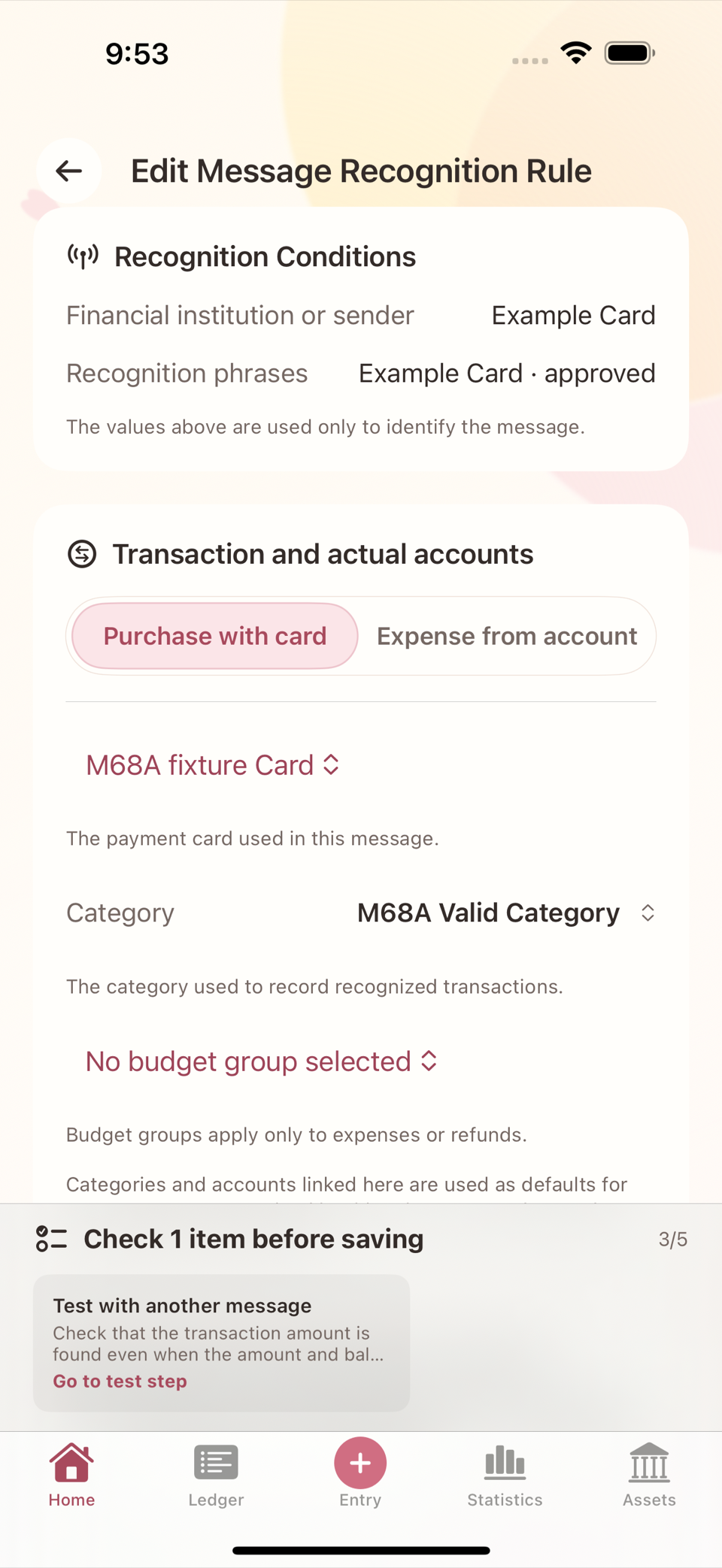
규칙을 저장하기 전에 기록될 내용 미리보기 카드에서 추출된 금액·날짜·거래처와, 지정한 카테고리·결제수단 참조가 올바른지 확인한다. 샘플 원문 보관은 새 규칙에서 기본으로 켜져 있으며, 원한다면 꺼서 이 sample을 규칙에 남기지 않을 수 있다. 여기서도 자동 저장은 없으며 사용자가 직접 저장을 눌러야 규칙이 등록된다.
마지막 단계 — 규칙 이름이 곧 키다
마지막 이름·저장 단계에서 정하는 규칙 이름은 목록에 보이는 라벨이면서 동시에 규칙을 구분하는 키다. 같은 이름을 두 번 쓸 수 없다.
- 이미 있는 이름으로 저장하면 저장이 거부된다. 덮어쓰지도, 합치지도 않는다.
- 비교는 느슨하다. 앞뒤 공백을 지우고 대소문자·악센트를 무시하고 견준다. 그래서
카드승인과카드승인(뒤에 공백),Cafe와Café는 같은 이름 취급이다. - 보관된 규칙의 이름도 계속 자리를 차지한다. 규칙을 보관해도 이름은 풀리지 않는다. 같은 이름을 다시 쓰려면 보관된 규칙의 이름을 먼저 바꿔야 한다.
- 복제로 만들면 이름이
<원래 이름> 복사본으로 미리 채워져 그대로 저장해도 겹치지 않는다. - 이름은 120자까지다.
⚠️ 이름이 겹쳐도 화면이 그렇게 말해 주지는 않는다. 저장을 누른 뒤에 "규칙을 저장하지 못했습니다. 최신 목록을 확인하고 다시 시도해 주세요."라는 일반적인 문구만 뜬다. 다른 원인일 때도 같은 문구가 나오므로, 이 메시지를 보면 목록의 "보관됨" 섹션까지 포함해 같은 이름이 있는지부터 확인한다.
이름은 나중에 바꿔도 규칙의 정체성·우선순위·연결은 그대로 유지된다. 이 이름은 입력 화면에서 문자가 인식됐을 때 규칙: <이름> · <금융기관> · 사용자 규칙 형태로 표시되므로, 나중에 어떤 규칙이 걸렸는지 알아볼 수 있는 이름으로 짓는 편이 좋다.
4단계 — 같은 형식의 새 문자로 재검증한다
규칙을 저장한 뒤, 같은 카드사에서 온 다른 금액의 새 문자를 붙여넣어 규칙이 올바르게 적용되는지 확인한다. 금액이나 날짜가 문자 안에서 조금씩 다른 형식으로 와도 규칙이 일관되게 인식하는지 점검한다.
만약 잘못 인식되면 규칙을 다시 열어 필드 지정을 고친다. 더 정확한 규칙으로 대체하고 싶으면 기존 규칙을 목록에서 보관으로 옮겨 둔다 — 보관된 규칙은 "보관됨" 섹션으로 옮겨가 더는 새 문자에 적용되지 않지만 완전히 지워지지는 않는다. 다만 보관해도 그 이름은 계속 예약된 상태라, 새 규칙에 같은 이름을 다시 쓸 수는 없다(위 "규칙 이름이 곧 키다" 참고).
보관된 사용자 규칙은 편집 화면에서 규칙명을 확인한 뒤 영구 삭제할 수 있다. 이 작업은 되돌릴 수 없지만, 과거 거래·계정·영수증·반복 규칙을 함께 삭제하지는 않는다. 현재 사용 중인 규칙과 앱 기본 제공 규칙은 영구 삭제 대상이 아니다.
개인정보 주의
- 계좌번호·카드번호 전체 자리, 실명, 전화번호 같은 민감한 값은 규칙의 sample이나 지원 문의, 공개 캡처 어디에도 그대로 넣지 않는다. 카드 뒷자리 일부, 가맹점명 정도만 남기고 나머지는 가린다.
- 지원 문의를 남길 때는 실제 금액·거래처 대신 문자의 형식(줄바꿈 위치, 어떤 단어가 어디에 있는지)과 어떤 값이 잘못 인식됐는지 정도의 최소 재현 정보만 포함한다.
여러 규칙이 동시에 맞을 때
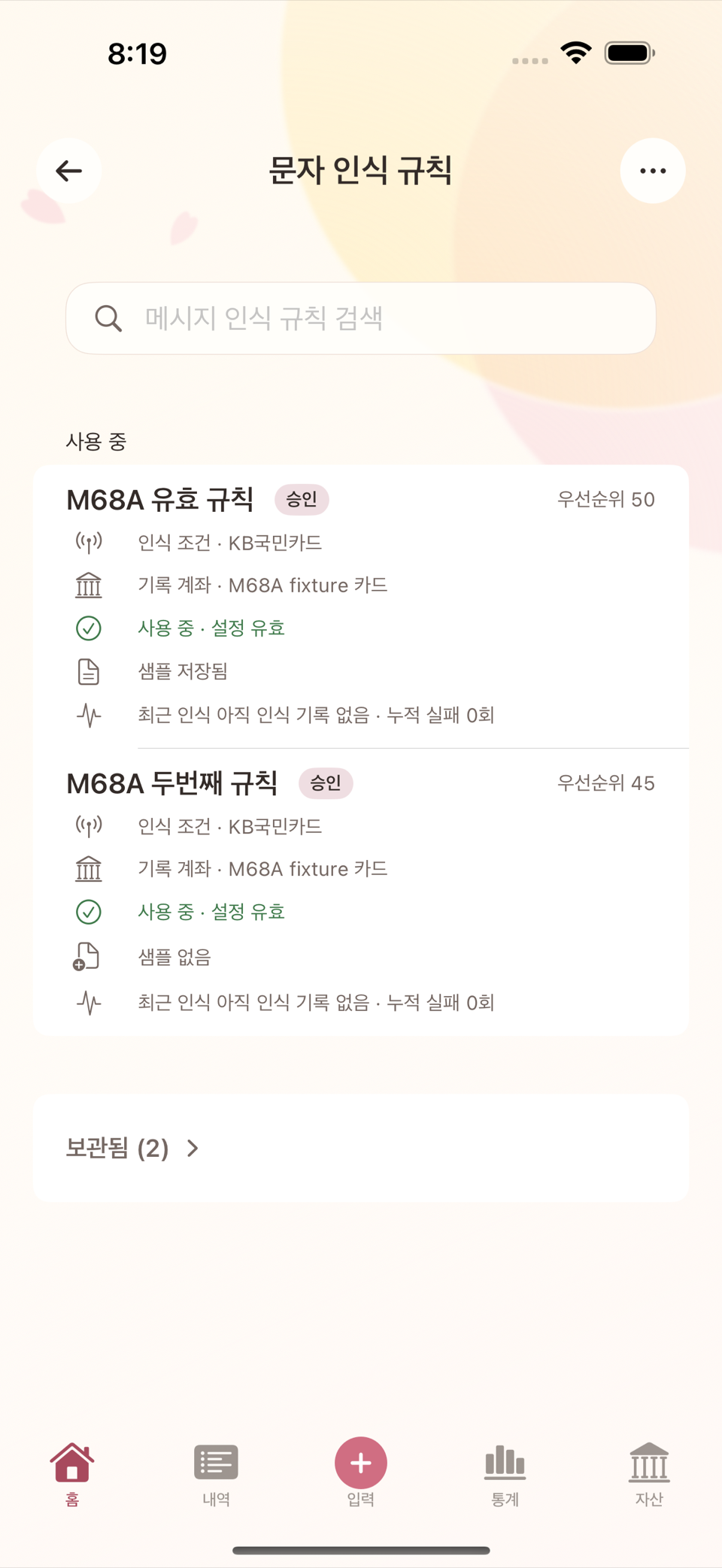
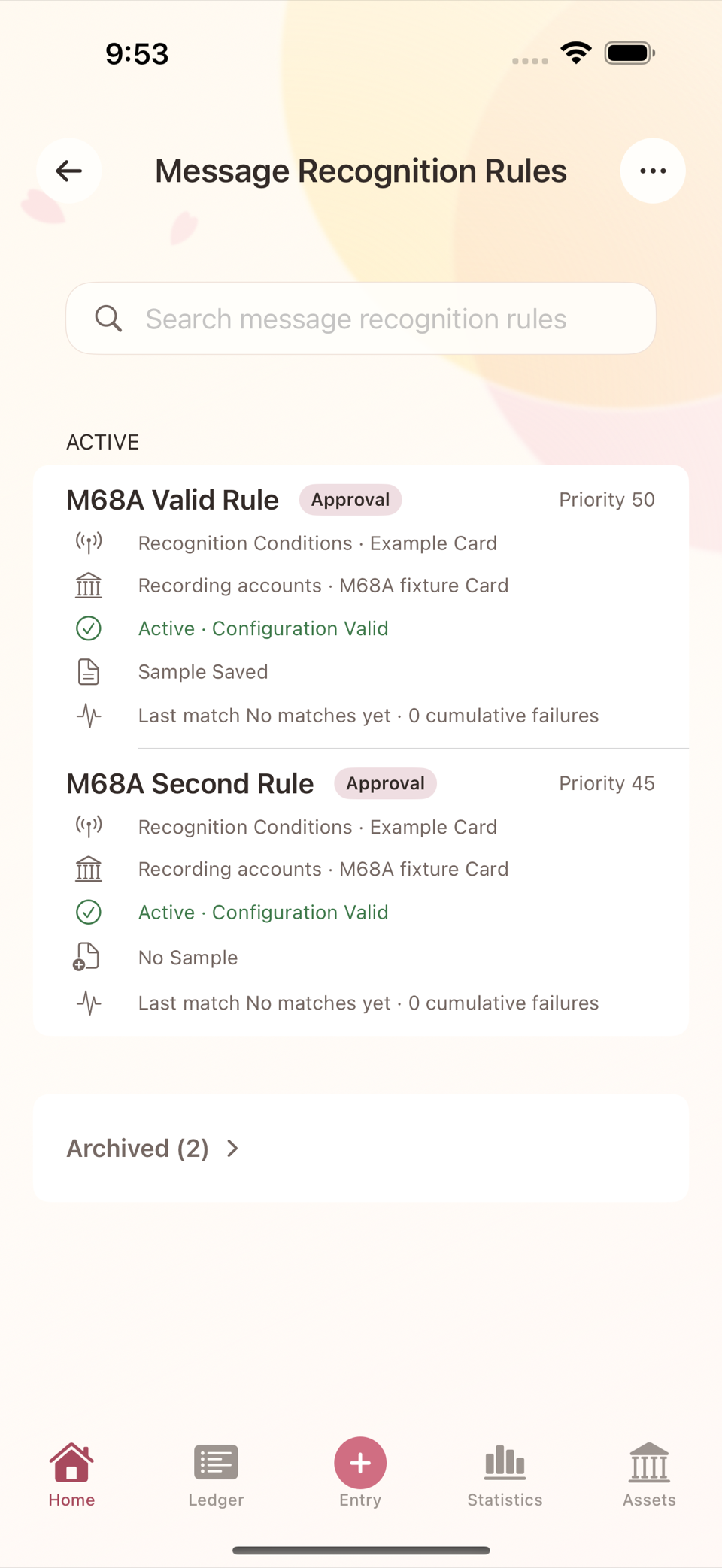
규칙 목록 화면의 순서 편집 버튼을 누르면 규칙을 드래그하거나 화살표로 옮겨 순서를 바꿀 수 있고, 이 순서가 곧 우선순위다. 여러 규칙이 같은 문자에 동시에 맞으면 다음 순서로 적용된다.
- 내가 만든 규칙이 항상 앱 기본 제공 규칙보다 먼저 적용된다.
- 내가 만든 규칙끼리는 순서 편집에서 위에 있는 규칙이 먼저 적용된다.
ENGLISH
8. Pasting Messages and Setting Up Message Recognition Rules — A Worked Example
Paste an approval or transaction message from your card issuer or bank and the app can fill in the amount, merchant, and date without typing them by hand. This chapter covers how to check which formats are already supported, and how to build your own message recognition rule for a format that is not.
Start with the privacy boundary
Tameio does not read your messages inbox. It processes text only when you copy and paste it from a notification or messaging app, or explicitly send selected text to Tameio from the Share menu. That text is never sent off the device. The sample message you enter when creating a rule is stored locally as reference material for that rule; it is not sent to a server either.
Step 1 — Paste supported formats directly
Paste a card approval or account transaction message into the entry screen, or select it in the messaging app and share it to Tameio. If it matches a registered rule, the amount, merchant, date, and so on are filled in automatically. The complete source text stays in Additional Memo with its original line breaks so you can compare it with the recognition result later. Nothing is saved automatically — check the filled-in values and tap save to record the transaction.
Step 2 — Create a new rule for formats that are not recognized
Messages from a new card issuer, or in unfamiliar wording, may not be filled in automatically. When that happens, open Message Recognition Rules from the Manage screen in the top menu, then choose Add Message Recognition Rule from the menu in the top right.
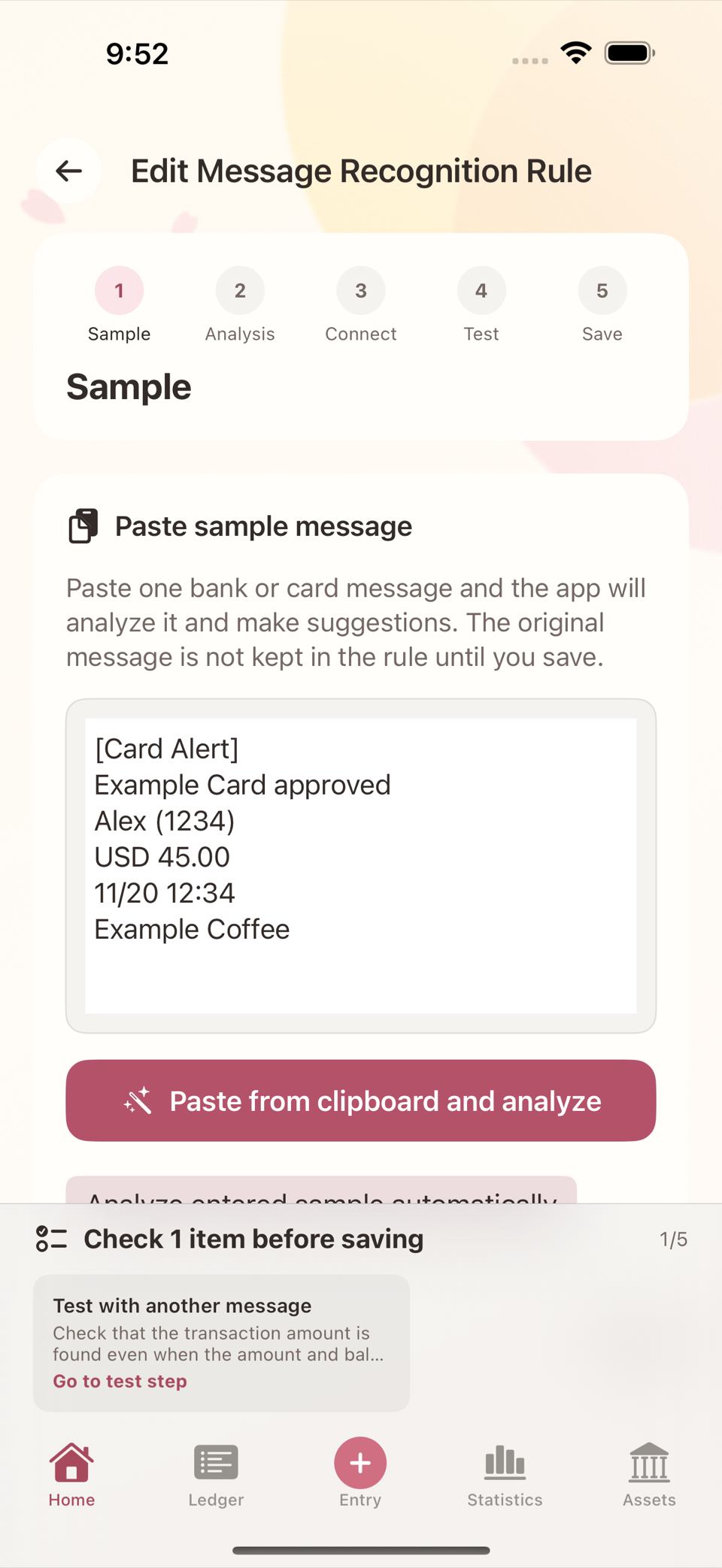
Example message (sensitive details removed; not real data):
[Web]
Example Card (1234) approved
$120.00 single payment
09/07 12:34
Merchant: Example Cafe- Enter the message above as the sample on the add-rule screen.
- Following the guidance, mark the parts that correspond to the amount ($120.00), the date (09/07), and the merchant (Example Cafe).
- Set which transaction type this message is (expense, card payment, and so on), plus the default category and payment method (Example Card).
Advanced settings — when the automatic analysis picks the wrong place
At the bottom of the Automatic analysis step there is a collapsed Advanced settings section. You do not have to open it to create a rule — as the screen itself says, it is for when you want to "Use this only to fine-tune values suggested by the guided flow."
Which messages the rule applies to — recognition conditions
| Field | What it means |
|---|---|
| Required words · One per line | Every word you list here must appear in the message for the rule to match |
| Excluded words · One per line | If even one of them appears, the rule is not applied |
| Word order · Example: deposit > transaction amount | Each line is one group, and the words separated by > must appear in that order |
All three fields take one entry per line. Things to know:
- These are not regular expressions. The app only checks whether the text you typed appears in the message as-is.
- Case and accents matter.
CARDandcardcount as different words. - At least one of Required words or Word order must be filled in. Leave both empty and saving is blocked with "A criterion is needed to distinguish this message."
- Word order allows at most 4 lines, with 2–8 words per line. Across all three fields you cannot exceed 16 distinct words.
Where to take the values from — exact extraction ranges
Use this when the automatic analysis picked the wrong amount or merchant. Drag to select the part you want in the sample message, choose the Field, then tap Use selected source range as a field. The seven fields you can choose from are Amount · Currency · Merchant or contact · Transaction Date · Financial institution hint · Account suffix hint · Installment Months.
- If dragging is awkward, type the value exactly as it appears into Exact value in the sample and tap Add Directly Entered Value instead.
- If the same value appears several times in the message, use Occurrence (1–8) to say which one you mean.
- Choosing Amount also shows Decimal separator (default none) and Grouping separator (default comma). For messages like
$120.00set the decimal separator to a period. - For Currency, turning on Fixed currency code stops the app looking for a currency in the message and always records the code you set in Fixed currency. Use this for messages that carry no currency marker.
- The fields you assign stack up below as entries like
Amount · #1, and each row has a remove button.
Priority and test reference date
- Priority (0–10,000) can only be adjusted when you are creating a rule. On an already saved rule the value is locked, and you change it with Edit order in the list instead (see "When several rules match at once" below).
- Test reference date is not saved with the rule. It exists so you can test which date gets recorded when the message contains no date.
When editing or duplicating a saved rule
Open a rule by editing or duplicating it and a notice appears at the top — "The saved recognition and extraction pattern is preserved." — with the recognition condition fields locked. In that state the pattern saved earlier is what is used, not the sample you have entered now. To really change the conditions you must first tap Rebuild recognition pattern from current sample to unlock them.
Step 3 — Check the extraction result in the preview
Before saving the rule, use the Preview of what will be recorded card to check that the extracted amount, date, and merchant, and the category and payment method references you set, are correct. Keep original sample message is on by default for a new rule; turn it off if you do not want to keep the sample with the rule for later reference. Nothing is saved automatically here either — the rule is registered only when you save it yourself.
The last step — the rule name is the key
The rule name you set in the final Name and save step is not just the label shown in the list; the name itself is the key that identifies the rule. You cannot use the same name twice.
- Saving with a name that already exists is rejected. Nothing is overwritten and nothing is merged.
- The comparison is lenient. Leading and trailing spaces are stripped, and case and accents are ignored. So
Card approvalandcard approval(with a trailing space), orCafeandCafé, count as the same name. - An archived rule still holds on to its name. Archiving a rule does not release the name, so to reuse it you have to rename the archived rule first.
- Duplicating a rule pre-fills the name so that it does not collide when you save it as is.
- Names can be up to 120 characters.
⚠️ The screen will not tell you that the name is the problem. After you tap save, all you get is the generic message "The rule couldn't be saved. Check the latest list and try again." The same wording appears for other causes too, so when you see it, check the list — including the "Archived" section — for the same name first.
Renaming a rule later keeps its identity, priority, and links intact. This name is also shown on the entry screen when a message is recognized, in the form Rule: <name> · <institution> · User rule, so it is worth choosing a name that will tell you later which rule matched.
Step 4 — Re-verify with a new message in the same format
After saving the rule, paste a new message from the same card issuer with a different amount and check that the rule applies correctly. Look at whether the rule recognizes amounts and dates consistently even when they arrive in slightly different shapes.
If something is recognized incorrectly, reopen the rule and correct the field assignments. If you want to replace it with a more accurate rule, move the old one to Archive in the list — archived rules move to the "Archived" section and are no longer applied to new messages, but they are not erased. Note, though, that archiving still keeps its name reserved, so you cannot give a new rule the same name (see "The rule name is the key" above).
You can permanently delete an archived user rule from its edit screen after confirming the rule name. This cannot be undone, but it does not delete past transactions, accounts, receipts, or recurring rules that once referred to it. Active rules and the app's built-in rules cannot be permanently deleted this way.
Privacy notes
- Never put sensitive values — full account or card numbers, real names, phone numbers — into a rule's sample, into a support request, or into any screenshot you share. Keep at most the last few digits of a card and the merchant name, and mask the rest.
- When you write to support, include only the minimum needed to reproduce the problem: the shape of the message (where the line breaks are, which word sits where) and which value was recognized incorrectly, rather than real amounts and merchants.
When several rules match at once
Tap Edit order on the rule list screen and you can drag rules or move them with the arrows; that order is the priority. When several rules match the same message, they are applied in this order.
- Your own rules are always applied before the app's built-in rules.
- Among your own rules, the one higher up in Edit order is applied first.