PAIDIA STUDIO
7. 반복 규칙·예정 거래 실전 예제
7. 반복 규칙·예정 거래 실전 예제
반복 규칙은 매달 되풀이되는 지출(구독료, 공과금, 정기 진료비 등)을 미리 등록해두고 예정 거래를 자동으로 만들어주는 기능이다. 이 장이 끝나면 다음 세 역할의 차이를 분명히 구분할 수 있어야 한다.
카테고리      = 지출의 성격을 정한다 (무엇에 썼나)
예산 묶음     = 어느 한도에서 차감할지 정한다 (얼마까지 쓸까)
반복 규칙     = 위 값들을 기본 적용해 예정 거래를 미리 만든다 (재원을 배정하지는 않는다)
반복 규칙 화면은 설정의 반복 규칙 행에서 들어간다. 화면 안에는 규칙 세그먼트와 예정 거래 세그먼트가 있어 규칙 목록과 예정 거래 목록을 오갈 수 있다.
예제 설정
- 6장과 같은 "생활비" 계열 예산 묶음 중
고정비묶음(9월 배정 200,000원)을 사용한다. - 규칙 A — 영상 구독: 17,000원 고정 금액, 매월 7일, 카테고리
구독/멤버십, 결제수단 신용카드. - 규칙 B — 병원 진료비: 금액 미정, 매월 15일 전후, 카테고리
의료비, 결제수단 신용카드.
1단계 — 규칙을 만든다
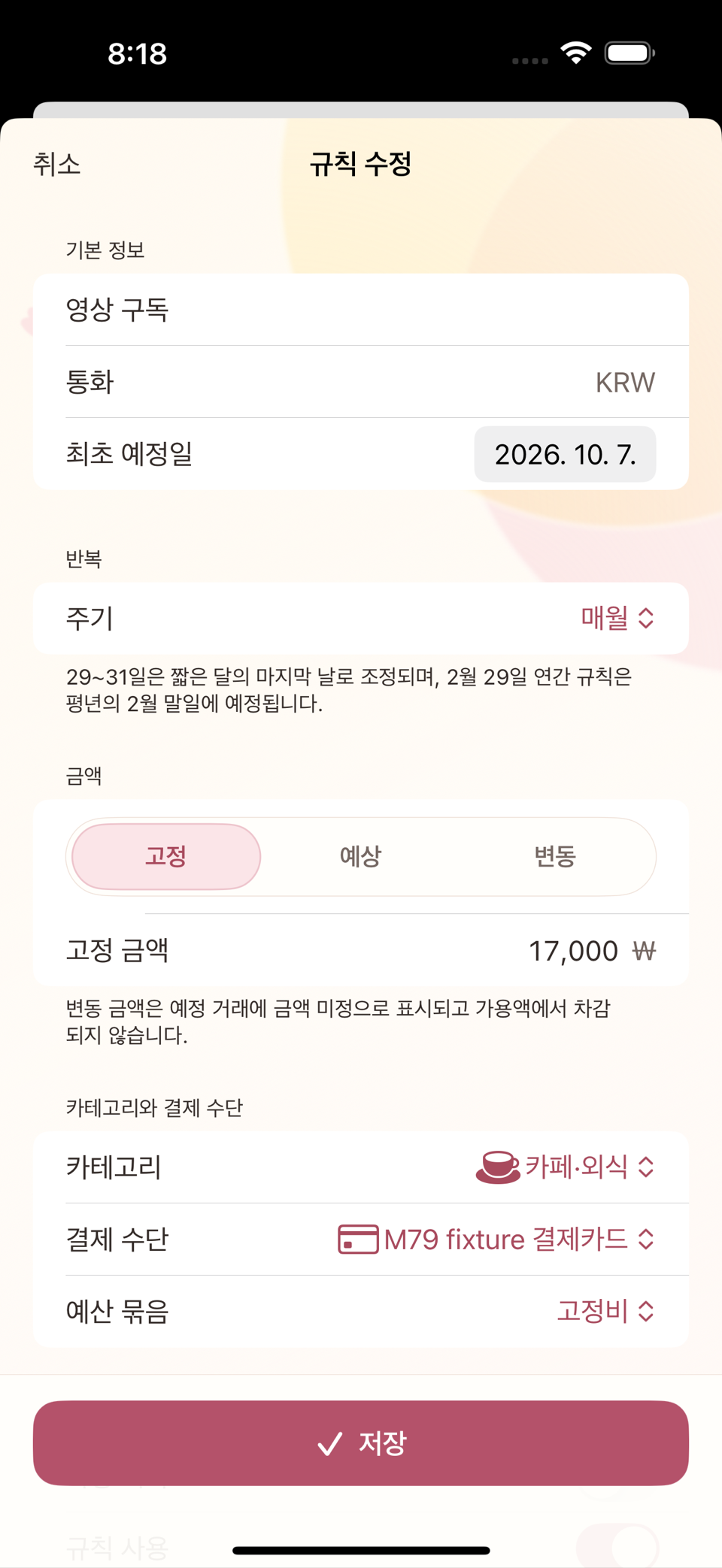
규칙 추가 화면에서 이름, 금액(또는 "금액 미정"), 반복 주기(매월 며칠), 카테고리, 결제수단을 지정한다. 규칙 자체는 재원을 배정하지 않는다 — 카테고리와 결제수단을 다음 예정건에 기본으로 채워 넣을 뿐이다.
2단계 — 예정 거래를 확인한다
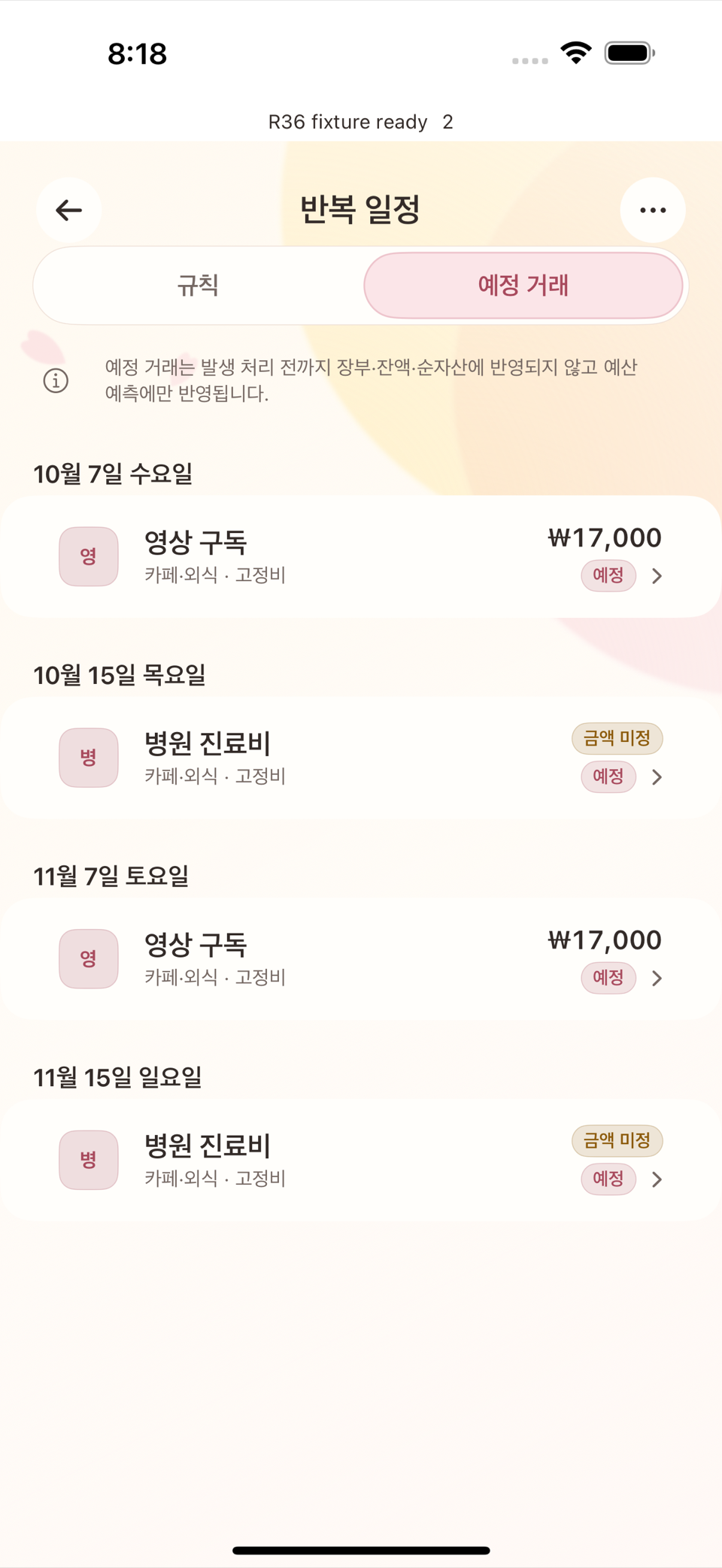
규칙을 저장하면 다음 예정 거래가 자동으로 생긴다.
| 예정 거래 | 날짜 | 금액 | 예산 화면에 미치는 영향 |
|---|---|---|---|
| 영상 구독 | 9월 7일 | 17,000원 | 고정비 묶음의 남은 예정액에서 17,000원을 미리 차감해 보여줌 |
| 병원 진료비 | 9월 15일 | 미정 | 예정 건수만 표시, 금액을 임의로 계산하지 않음 |
이 시점에서 고정비 묶음의 화면은 다음처럼 보인다.
배정 200,000원 − 실제 사용 0원 − 남은 예정액 17,000원 = 남은 금액 183,000원(예정 반영)중요한 점: 예정 거래는 아직 계좌 잔액이나 지출 통계를 바꾸지 않는다. 예산 화면의 "남은 금액"만 미리 줄여서 "이 돈은 곧 나갈 예정이니 다른 데 쓰면 안 된다"는 계획 신호를 보여줄 뿐이다.
3단계 — 발생을 확인해 실제 거래로 만든다
9월 7일이 되어 실제로 결제되면 예정 거래를 눌러 발생 확인 화면을 열고 기록을 눌러 실제 거래로 전환한다.
- 실제 거래가 생성되어 신용카드 미지급금(부채)이 늘어난다.
고정비묶음의 사용액이 17,000원 늘고, 같은 금액만큼 있던 남은 예정액은 사라진다.
기록 후: 배정 200,000원 − 실제 사용 17,000원 − 남은 예정액 0원 = 남은 금액 183,000원기록 전후로 남은 금액이 똑같이 183,000원이라는 점을 확인한다 — 예정액과 실제 사용액을 동시에 더해 이중으로 차감하지 않는다는 뜻이다.
4단계 — 날짜를 바꾼다
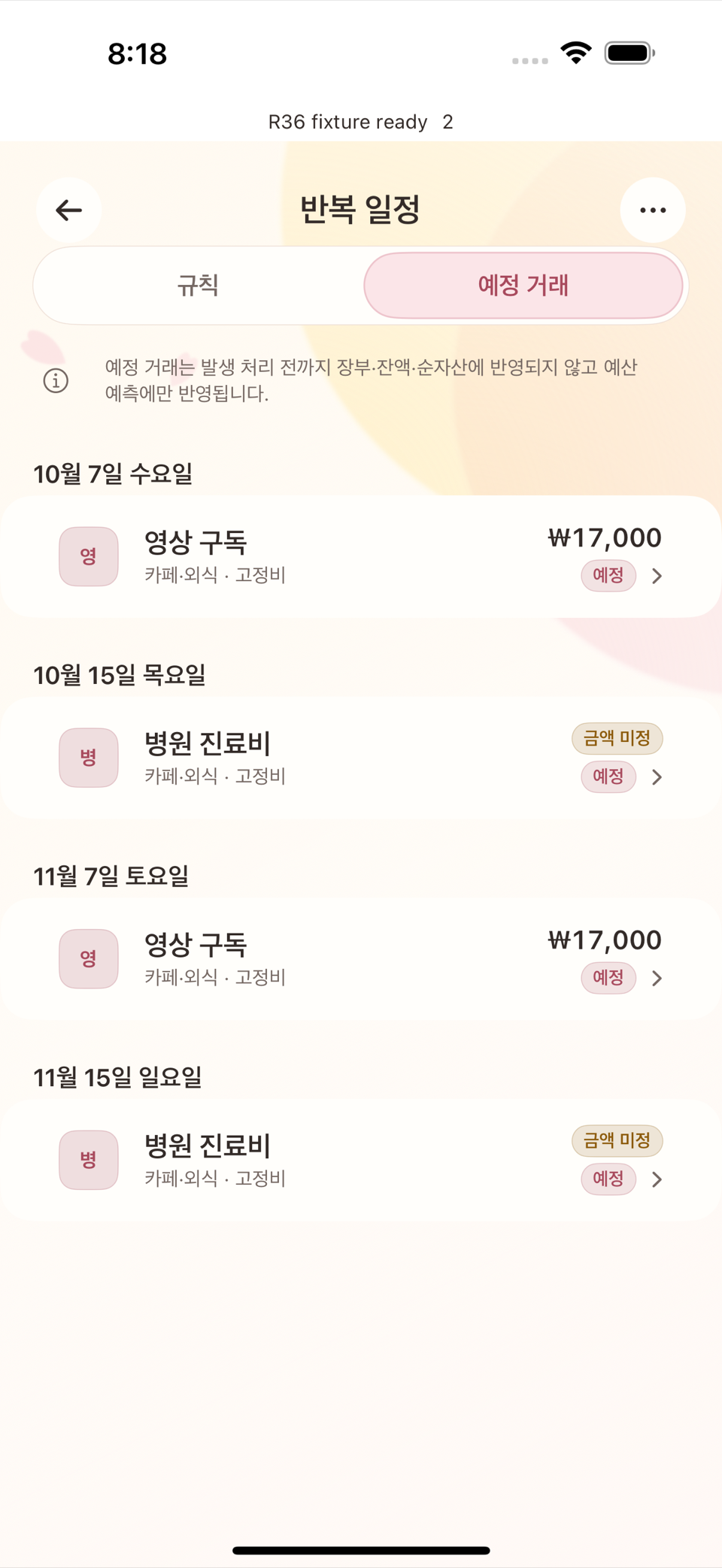
다음 달, 영상 구독 결제일이 7일에서 29일로 바뀌었다고 하자. 규칙 편집 화면에서 반복일을 29일로 수정하면:
- 이미 지난 7일 예정건 중 아직 처리되지 않은 것은 정리되어 남지 않는다.
- 새 29일 예정건만 생성된다.
- 이미 발생 처리해 실제 거래로 남은 과거 기록은 그대로 보존된다.
5단계 — "건너뜀"의 정확한 의미와 규칙 종료
병원 진료비처럼 매번 금액이 안 맞는 예정건을 그냥 두면 처리되지 않은 예정 상태로 계속 남는다. 예정건 하나하나를 사용자가 직접 "건너뜀"으로 표시하는 버튼이나 스와이프 동작은 없다 — "건너뜀"은 오직 규칙을 삭제할 때만 나타나는 자동 상태 라벨이다. 그 규칙에 이미 발생시켰거나 건너뛴 이력이 있어 규칙 자체는 보관하기로 판정되면, 그 시점까지 남아 있던 미처리 예정건들이 함께 건너뜀으로 정리된다.
규칙을 당장 그만 쓰고 싶지만 지우고 싶지는 않다면 규칙 편집 화면의 규칙 사용 스위치를 꺼서 비활성화한다 — 이때는 새 예정건 생성만 멈추고, 이미 만들어진 예정건은 건너뜀 처리되지 않은 채 그대로 남는다. 아예 삭제하려면 같은 화면의 삭제를 누른다. 발생·건너뜀 이력이 전혀 없는 규칙은 규칙과 미처리 예정건이 함께 지워지고, 이력이 있는 규칙은 규칙 자체는 보관되고 남아 있던 미처리 예정건만 건너뜀으로 정리된다(과거 실제 거래는 항상 보존).
세 역할 다시 확인
| 상황 | 카테고리 | 예산 묶음 | 반복 규칙 |
|---|---|---|---|
| 이 지출은 뭐였나 | 구독/멤버십이 답한다 | — | — |
| 얼마까지 써도 되나 | — | 고정비 배정 200,000원이 답한다 | — |
| 다음 결제가 언제·얼마인가 | — | — | 규칙이 예정 거래로 미리 알려준다 |
세 축 중 하나만 봐서는 전체 그림이 보이지 않는다. 반복 규칙은 미리 알려주는 역할만 하고, 실제 예산 반영은 발생 처리가 일어난 뒤에 확정된다는 점을 기억한다.
ENGLISH
7. Recurring Rules and Scheduled Transactions — A Worked Example
A recurring rule lets you register spending that repeats every month (subscriptions, utility bills, regular medical visits) and have scheduled transactions created for you automatically. By the end of this chapter you should be able to tell these three roles clearly apart.
category        = decides the nature of the spending (what it was for)
budget group    = decides which limit it is drawn from (how much may be spent)
recurring rule  = applies those values in advance to create scheduled transactions
                  (it does not allocate any funding)
The recurring rules screen is reached from the Recurring Rules row in Settings. Inside, a Rules segment and a Scheduled Transactions segment let you switch between the list of rules and the list of scheduled transactions.
The setup
- We use a
Fixed Costsbudget group, in the same family as the "living costs" groups in chapter 6 (September allocation $200). - Rule A — Video Subscription: fixed amount of $17.00, on the 7th of each month, category
Subscriptions, paid by credit card. - Rule B — Medical Visits: amount not known in advance, around the 15th of each month, category
Medical, paid by credit card.
Step 1 — Create the rules
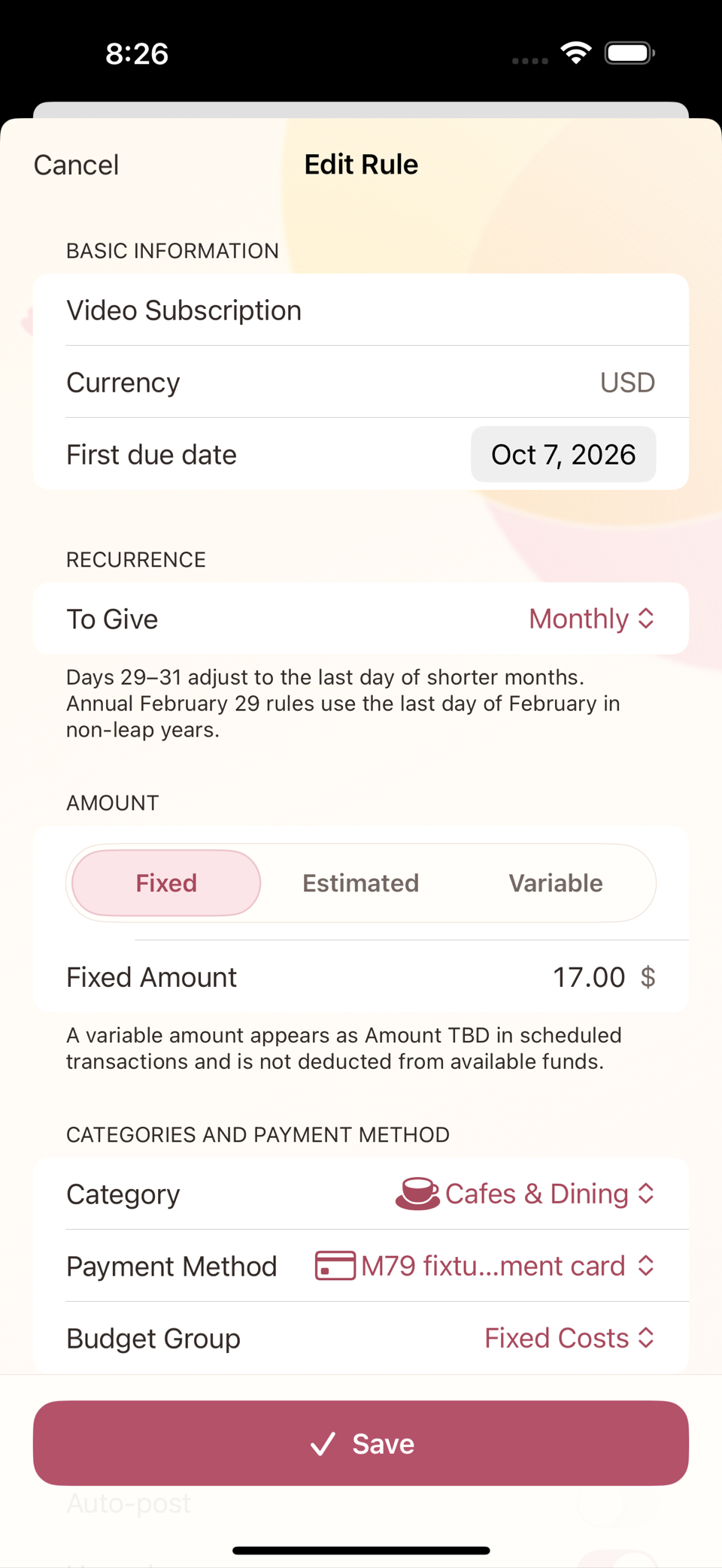
On the add-rule screen you set the name, the amount (or "Amount TBD"), the repeat cycle (which day of the month), the category, and the payment method. The rule itself allocates no funding — it only fills the category and payment method into the next scheduled transaction for you.
Step 2 — Check the scheduled transactions
Saving a rule automatically creates the next scheduled transaction.
| Scheduled transaction | Date | Amount | Effect on the budget screen |
|---|---|---|---|
| Video Subscription | 7 September | $17.00 | Deducts $17.00 in advance from the scheduled amount left in the Fixed Costs group |
| Medical Visits | 15 September | TBD | Only the count is shown; no amount is invented |
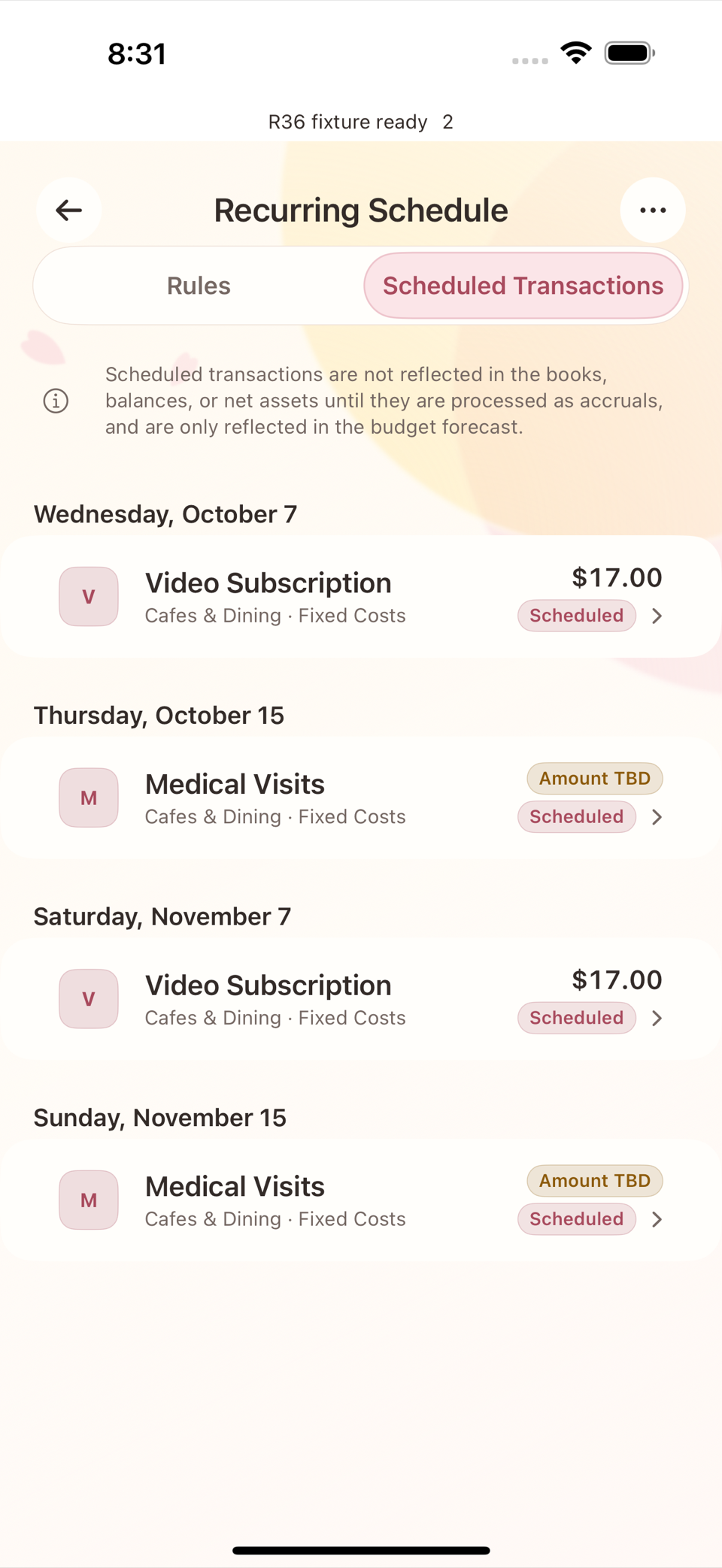
At this point the Fixed Costs group reads like this.
allocated $200 − actually spent $0 − scheduled still to come $17 = $183 available (including scheduled)The important point: a scheduled transaction does not yet change any account balance or spending statistic. It only lowers the available amount on the budget screen ahead of time, as a planning signal that says "this money is about to go out, so do not spend it on something else."
Step 3 — Confirm the occurrence to create a real transaction
When 7 September arrives and the payment actually happens, tap the scheduled transaction to open the Confirm occurrence screen and tap Post to turn it into a real transaction.
- A real transaction is created and the credit card balance owed (a liability) goes up.
- The spent amount of the
Fixed Costsgroup goes up by $17.00, and the scheduled amount still to come of the same size disappears.
after posting: allocated $200 − actually spent $17 − scheduled still to come $0 = $183 availableNotice that the available amount is $183 both before and after posting — which is to say the app does not double-count by subtracting the scheduled amount and the actual spending at the same time.
Step 4 — Change the date
Suppose that next month the Video Subscription payment date moves from the 7th to the 29th. If you change the repeat day to the 29th on the rule edit screen:
- Any unprocessed scheduled item still sitting on the 7th is cleared away.
- Only the new item on the 29th is created.
- Past records that were already posted into real transactions are preserved exactly as they are.
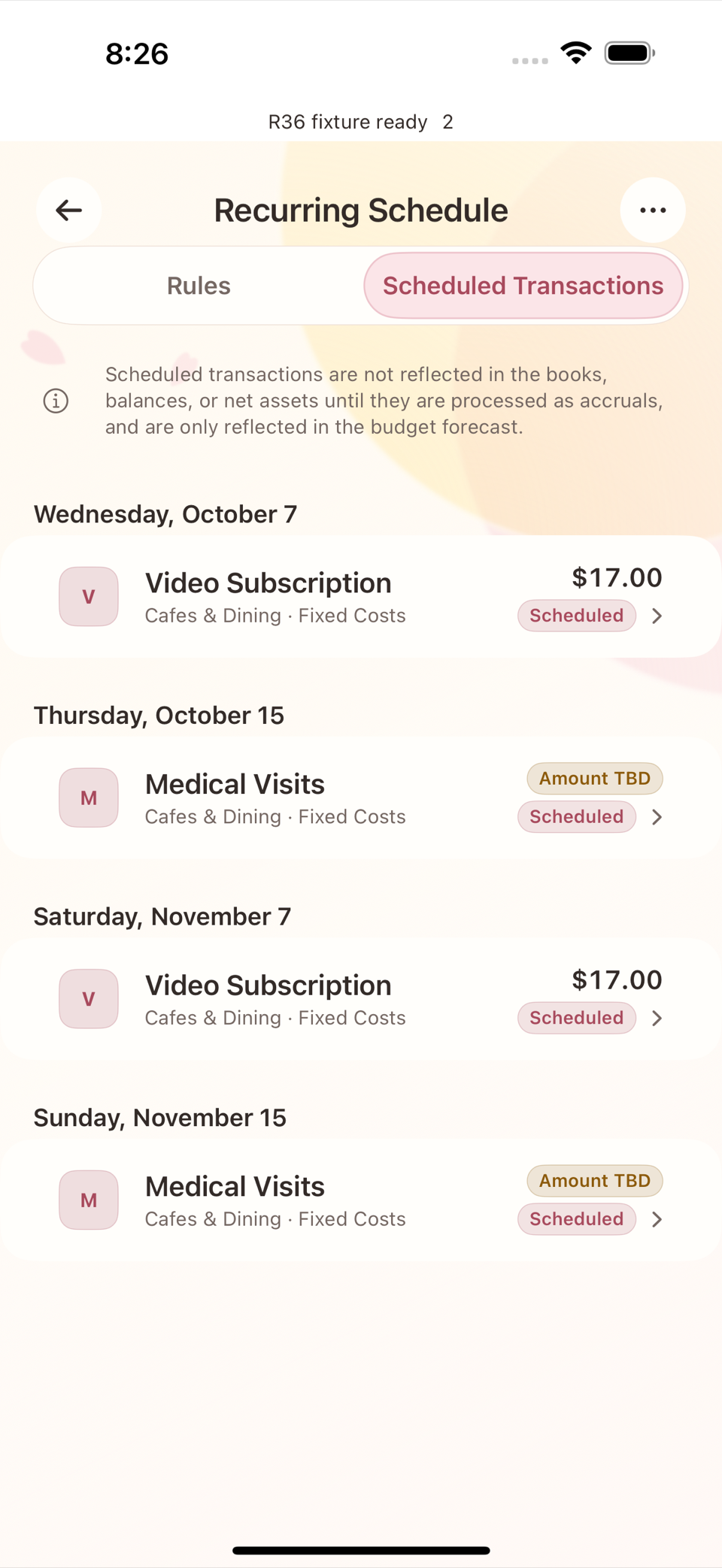
Step 5 — What "Skip" really means, and ending a rule
If you leave a scheduled item like Medical Visits alone because the amount never matches, it simply stays in the unprocessed scheduled state. There is no button and no swipe action for marking an individual scheduled item as "Skip" — "Skip" is a status label that appears automatically, and only when you delete a rule. If that rule already has posted or skipped history and so the rule itself is judged worth keeping, the unprocessed scheduled items left at that moment are cleared away as Skip at the same time.
If you want to stop using a rule right now but not delete it, turn off the Use rules switch on the rule edit screen. That only stops new scheduled items from being created; items already created stay exactly as they are and are not marked as skipped. To remove it entirely, tap Delete on the same screen. A rule with no posted or skipped history at all is deleted together with its unprocessed scheduled items; a rule with history is kept, and only its leftover unprocessed scheduled items are cleared away as skipped (past real transactions are always preserved).
The three roles once more
| Question | Category | Budget group | Recurring rule |
|---|---|---|---|
| What was this spending | Subscriptions answers it | — | — |
| How much may I spend | — | The Fixed Costs allocation of $200 answers it | — |
| When and how much is the next payment | — | — | The rule tells you in advance, as a scheduled transaction |
No single one of the three axes shows you the whole picture. Remember that a recurring rule only tells you in advance, and that the real effect on the budget is settled only after the occurrence is posted.