PAIDIA STUDIO
4. 거래 입력 — 지출·수입·이체·카드대금·환불·분할
4. 거래 입력 — 지출·수입·이체·카드대금·환불·분할
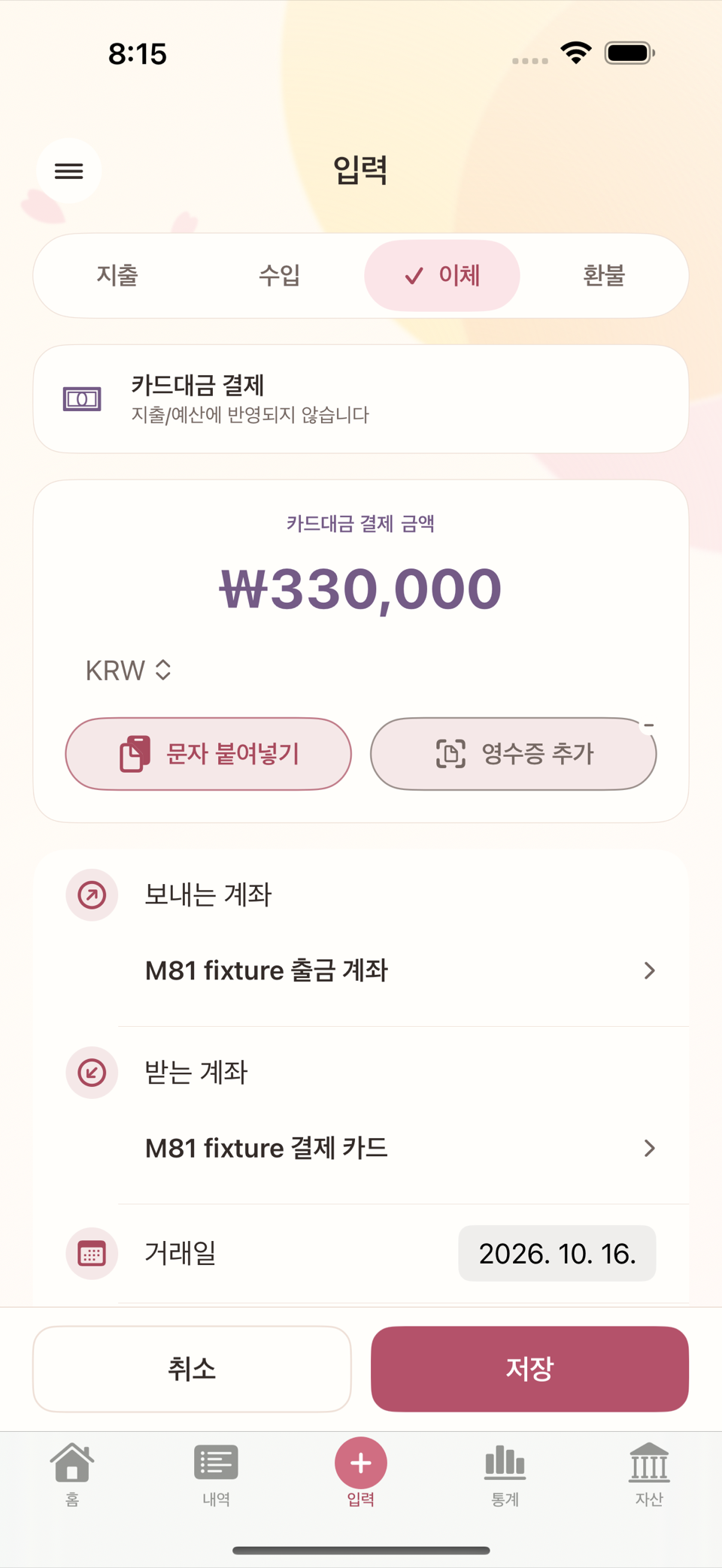
거래 입력은 타미오에서 가장 자주 쓰는 화면이다. 입력 화면 상단에는 지출 · 수입 · 이체 · 환불 네 개의 세그먼트가 있다. 이 장에서는 각 유형이 계좌 잔액과 예산에 어떻게 다르게 영향을 주는지 확인한다.
기본 세 유형
- 지출: 돈이 나간다. 카테고리를 지정하면 그 카테고리가 속한 예산 묶음의 사용액이 늘어난다.
- 수입: 돈이 들어온다. 배정 가능(풀)이 늘어난다.
- 이체: 내 계좌·현금·카드부채 사이에서 돈의 위치만 옮긴다. 지출도 수입도 아니므로 예산· 통계에 반영되지 않는다.
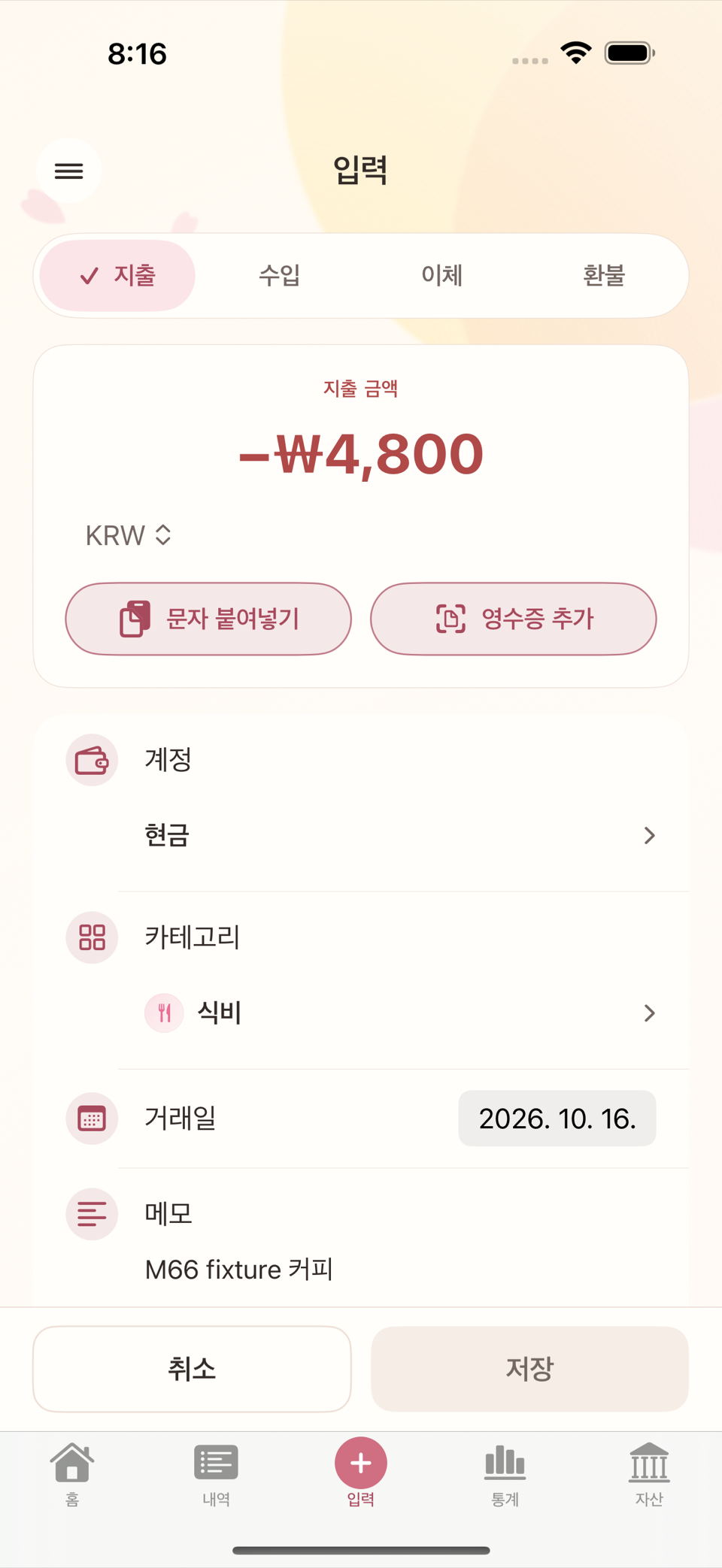
카드대금 — "이체 대상"에 카드를 고르면 자동 전환
신용카드 대금을 은행 계좌에서 결제하는 것은 지출이 아니라 이체의 한 종류(카드 결제)로 처리된다. 카드를 쓴 시점(지출 입력)에 이미 그 지출은 예산·통계에 반영됐기 때문에, 대금 결제는 "카드 부채를 갚기 위해 계좌에서 카드로 돈을 옮기는 것"일 뿐이다. 같은 지출을 두 번 세지 않기 위한 구분이다.
이체 세그먼트에서 이체 대상으로 신용카드 계정을 고르면 화면이 자동으로 카드 결제 모드로 전환되고 "지출/예산에 반영되지 않습니다"라는 안내가 뜬다. 별도의 "카드대금" 탭을 먼저 찾을 필요는 없다 — 이체 대상만 신용카드로 고르면 된다.
환불 — 이체나 수입과 다른 이유
카드사나 판매처에서 돈이 돌아오면 계좌에 입금된 것처럼 보이지만, 세 유형의 의미는 다르다.
| 입력 유형 | 의미 | 지출·예산에 미치는 영향 |
|---|---|---|
| 이체 | 내 계좌·현금·카드부채 사이에서 위치만 이동 | 비용을 줄이지 않는다 |
| 수입 | 새로 번 돈 | 배정 가능 재원은 늘지만 특정 지출을 취소하지 않는다 |
| 환불 | 이전에 기록한 비용의 전부·일부를 되돌림 | 그 비용과 해당 예산 묶음 사용액을 줄인다 |
환불을 이체로 기록하면 계좌 잔액은 맞아 보여도 원래 지출과 예산 사용액이 그대로 남는다. 수입으로 기록하면 지출은 그대로인데 수입만 늘어 통계 의미가 달라진다. 그래서 환불은 별도 유형이다.
환불을 시작하는 두 가지 방법
- 원래 지출에서 시작(권장): 이미 저장된 지출 거래 상세를 열고 관련 작업 카드의 환불 기록을 선택한다. 원거래를 지정하면 되돌릴 카테고리, 예산 묶음, 환입 수단(돈이 돌아오는 계좌)과 남은 환불 가능 금액이 자동으로 채워진다.
- 입력 화면에서 바로 시작: 상단 세그먼트에서 바로 환불을 고르고 필요한 값을 직접 채운다. 이 경우에도 원거래를 연결할 수 있다.
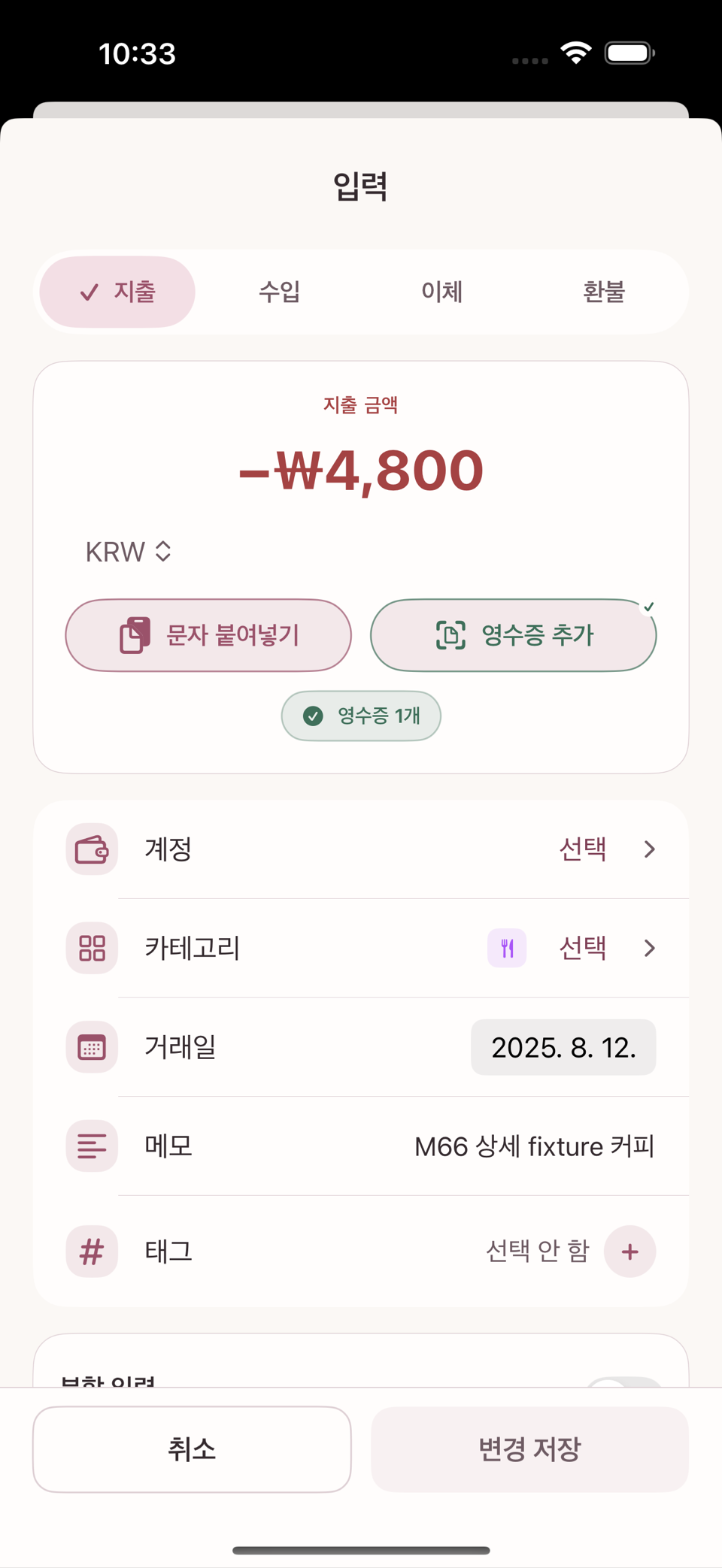
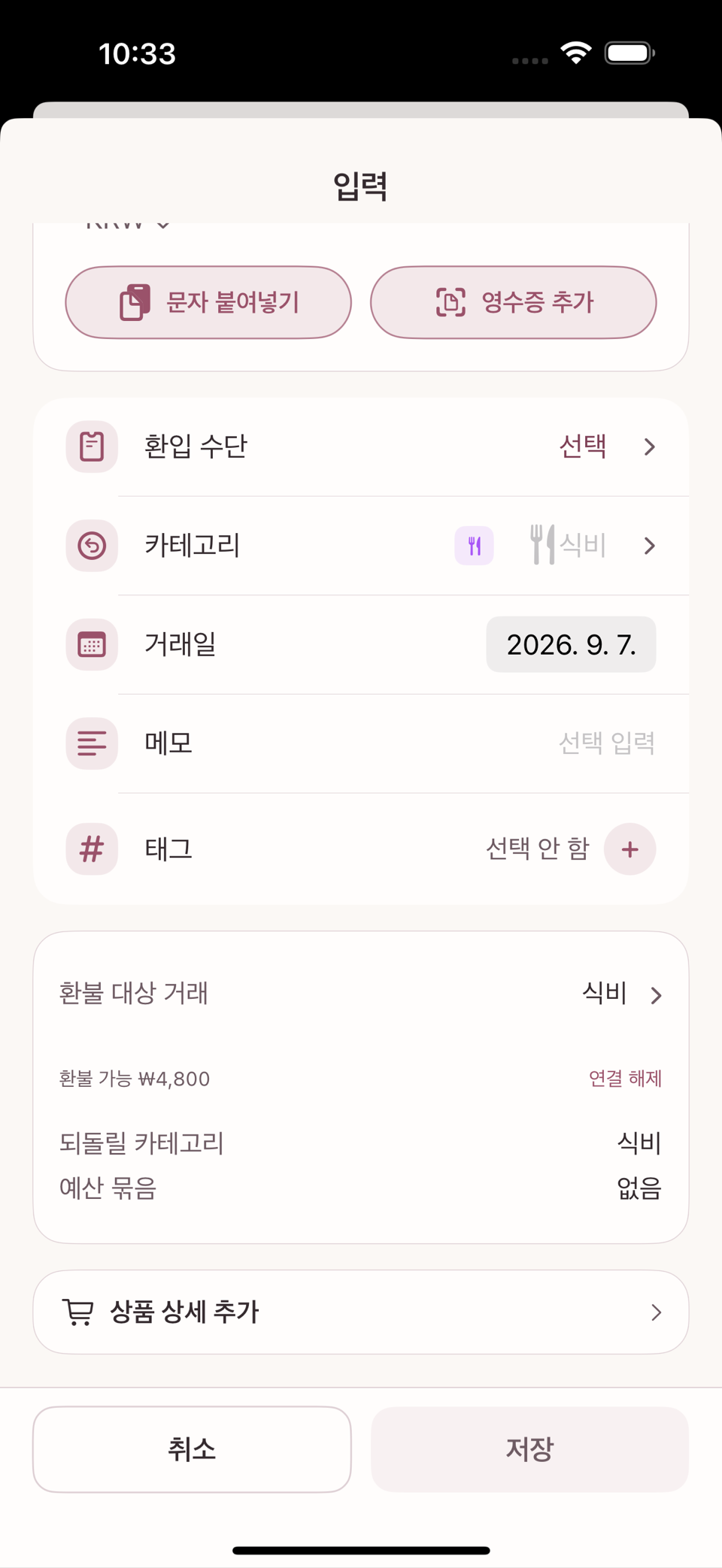
부분 환불이 가능하다. 같은 원거래에 연결된 환불 합계는 원래 지출 금액을 넘을 수 없다. 저장하면 원거래를 고치는 것이 아니라 새 거래가 하나 더 생기고, 원거래는 그대로 남는다. 환불은 환불이 일어난 날짜의 예산·통계에 반영된다 — 원거래가 있던 달이 아니다. 그래서 환불만 있는 기간은 그 카테고리의 지출이나 예산 사용액이 음수로 보일 수 있다.
원거래 연결은 선택 사항이지만, 자동 채움과 초과 환불 방지를 위해 권장한다. 원거래의 영수증· 첨부·태그는 환불 거래에 자동으로 복사되지 않는다. 환불 증빙이 필요하면 환불 거래에 따로 첨부한다.
분할 입력 — 한 결제를 여러 카테고리로 나누기
한 번의 결제에 여러 성격의 지출이 섞여 있을 때(예: 마트에서 식비와 생활용품을 함께 구매) 분할 입력을 사용한다. 이것은 별도 화면이 아니라, 지출 입력 화면 안 카테고리 입력란 위에 있는 "분할 입력" 스위치를 켜면 같은 화면이 분할 줄 편집 UI로 바뀌는 방식이다. 각 분할 줄마다 다른 카테고리·금액을 지정할 수 있고, 분할 합계는 전체 결제액과 반드시 같아야 한다.
메모와 추가 메모
- 메모는 내역·홈·검색 결과에서 거래 제목처럼 쓰는 짧은 설명이다.
- 추가 메모는 여러 줄의 자유 메모나 붙여넣은 문자 원문을 보관하는 칸이다. 문자를 붙여넣거나 공유해 인식하면 정리된 분석 결과와 별개로 원문 그대로 남아, 저장 뒤 거래 상세에서 줄바꿈을 유지한 채 보거나 복사할 수 있다.
추가 메모를 직접 고친 뒤 다른 문자를 다시 붙여넣으면, 앱이 기존 내용을 새 원문으로 바꿀지 확인한다. 취소하면 직접 쓴 내용을 유지한다. 메모와 추가 메모는 서로 독립이므로, 문자 원문이 길어도 거래 제목이 바뀌지 않는다.
수정과 삭제의 의미
- 거래를 수정해 저장하면 과거 기록에 "수정 전" 상태를 별도로 남기지 않고, 같은 거래를 새 내용으로 한 번에 교체한다.
- 거래 삭제는 확인 다이얼로그("거래를 삭제할까요?")를 거치는 되돌릴 수 없는 작업이다. 삭제하면 이 거래는 완전히 사라지고 잔액·통계가 즉시 다시 계산된다. 자세한 경고 문구와 계정 삭제의 두 선택지는 14장 위험 작업에서 다룬다.
ENGLISH
4. Entering Transactions — Expense, Income, Transfer, Card Payment, Refund, Split
The entry screen is the one you will use most. Across the top are four segments: Expense · Income · Transfer · Refund. This chapter shows how each type affects account balances and budgets differently.
The three basic types
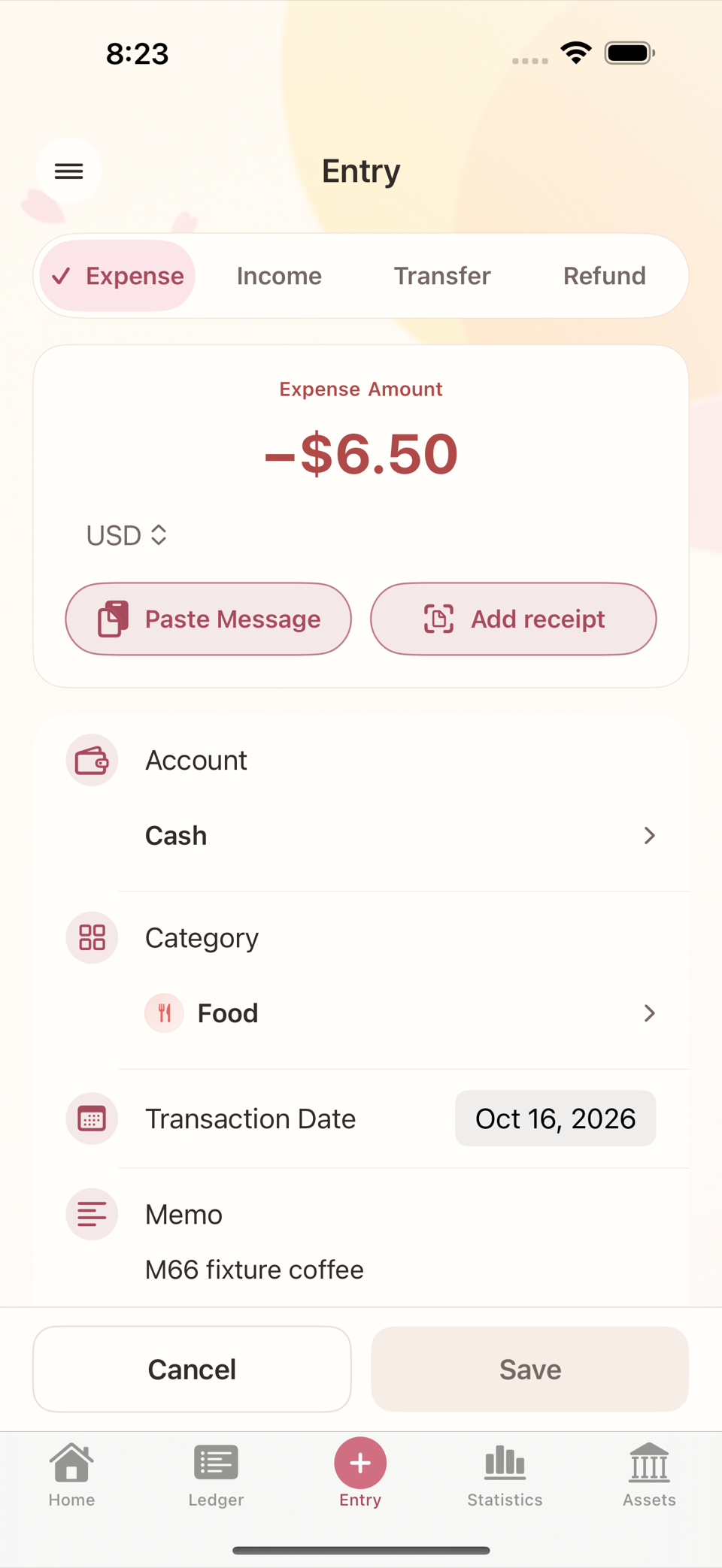
- Expense: money goes out. If you assign a category, the spent amount of the budget group that category belongs to goes up.
- Income: money comes in. Available to allocate (pool) goes up.
- Transfer: money only changes position between your own accounts, cash, and card debt. It is neither an expense nor income, so it does not appear in budgets or statistics.
Card payments — choosing a card as the Transfer Target switches automatically
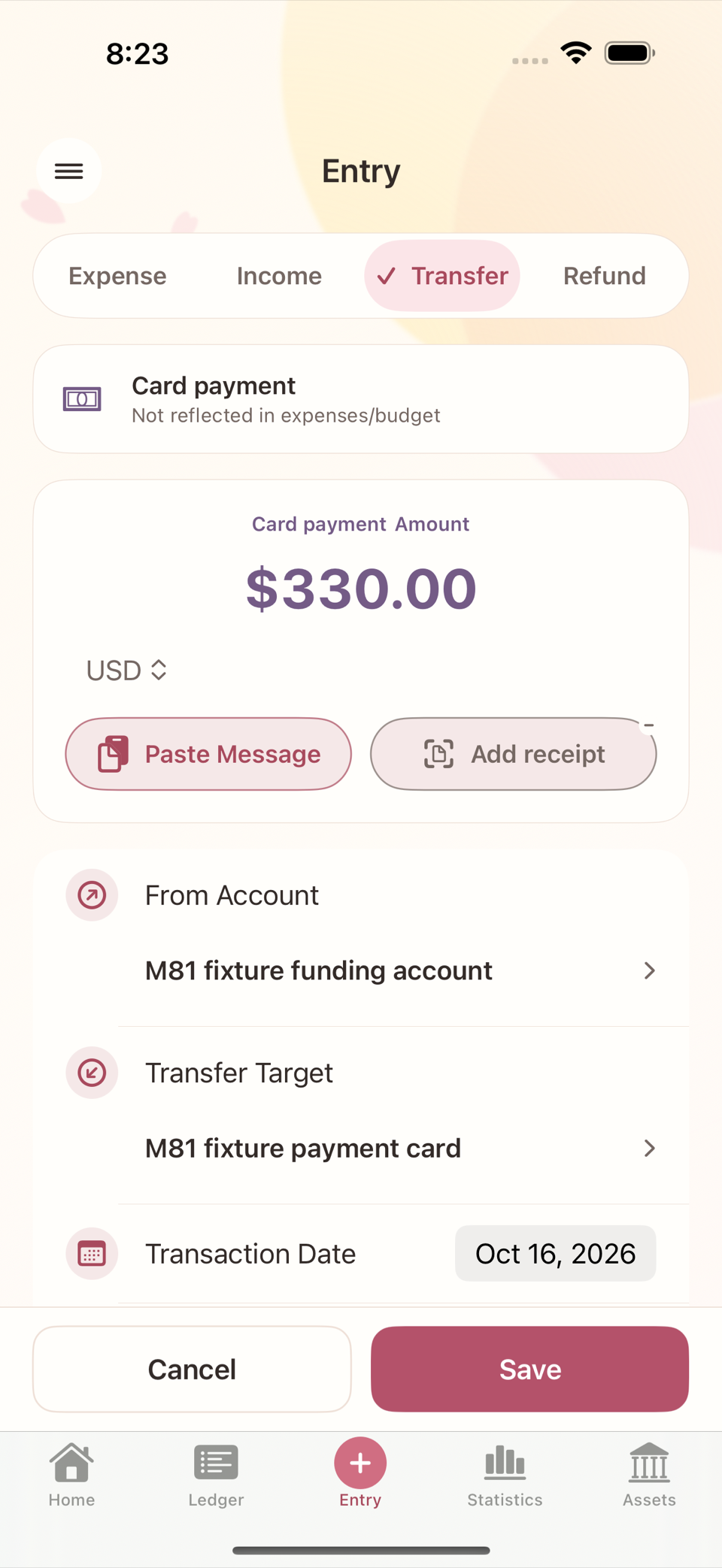
Paying a credit card bill from a bank account is not an expense; it is handled as a kind of transfer (a card payment). The spending was already reflected in budgets and statistics at the moment you used the card, so paying the bill is only "moving money from an account to the card to settle the debt". This distinction is what keeps the same spending from being counted twice.
In the Transfer segment, choose a credit card account as the Transfer Target and the screen switches to card payment mode by itself, showing the notice "Not reflected in expenses/budget". There is no separate "card payment" tab to find first — just set the transfer target to a credit card.
Refunds — why they differ from transfers and income
When money comes back from a card issuer or a merchant it looks like a deposit into your account, but the three types mean different things.
| Entry type | Meaning | Effect on expenses and budgets |
|---|---|---|
| Transfer | Position only, among your accounts, cash, and card debt | Does not reduce any cost |
| Income | Newly earned money | Increases funds available to allocate, but cancels no specific expense |
| Refund | Reverses all or part of a previously recorded cost | Reduces that cost and the spent amount of its budget group |
Record a refund as a transfer and the account balance looks right while the original expense and the budget usage stay behind. Record it as income and the expense stays put while income rises, which changes what the statistics mean. That is why refund is its own type.
Two ways to start a refund
- Start from the original expense (recommended): open the detail of the saved expense and choose Record refund in the Related actions card. Linking the original transaction fills in the category to reverse, the budget group, the account the money is coming back to, and the remaining refundable amount automatically.
- Start directly on the entry screen: choose Refund in the top segments and fill in the values yourself. You can still link the original transaction here.
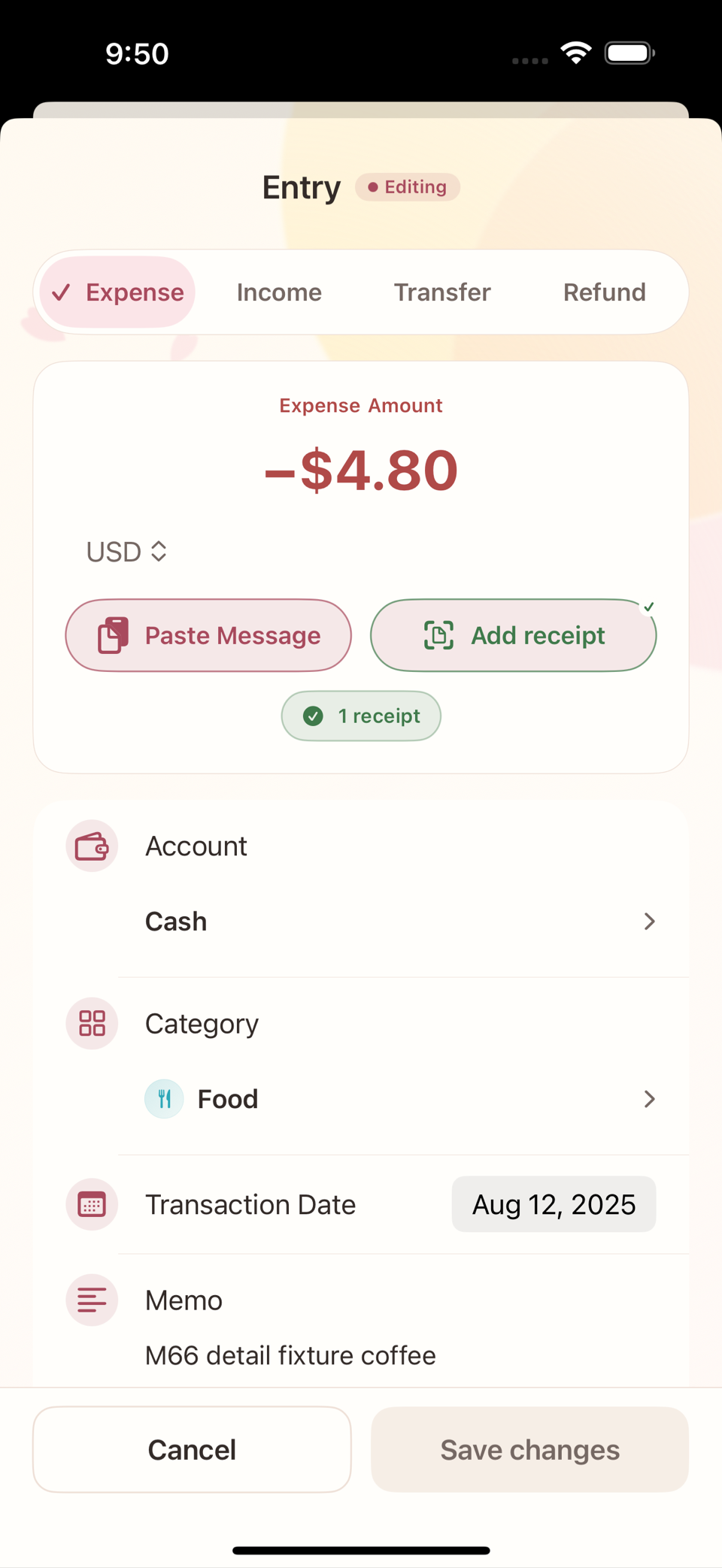
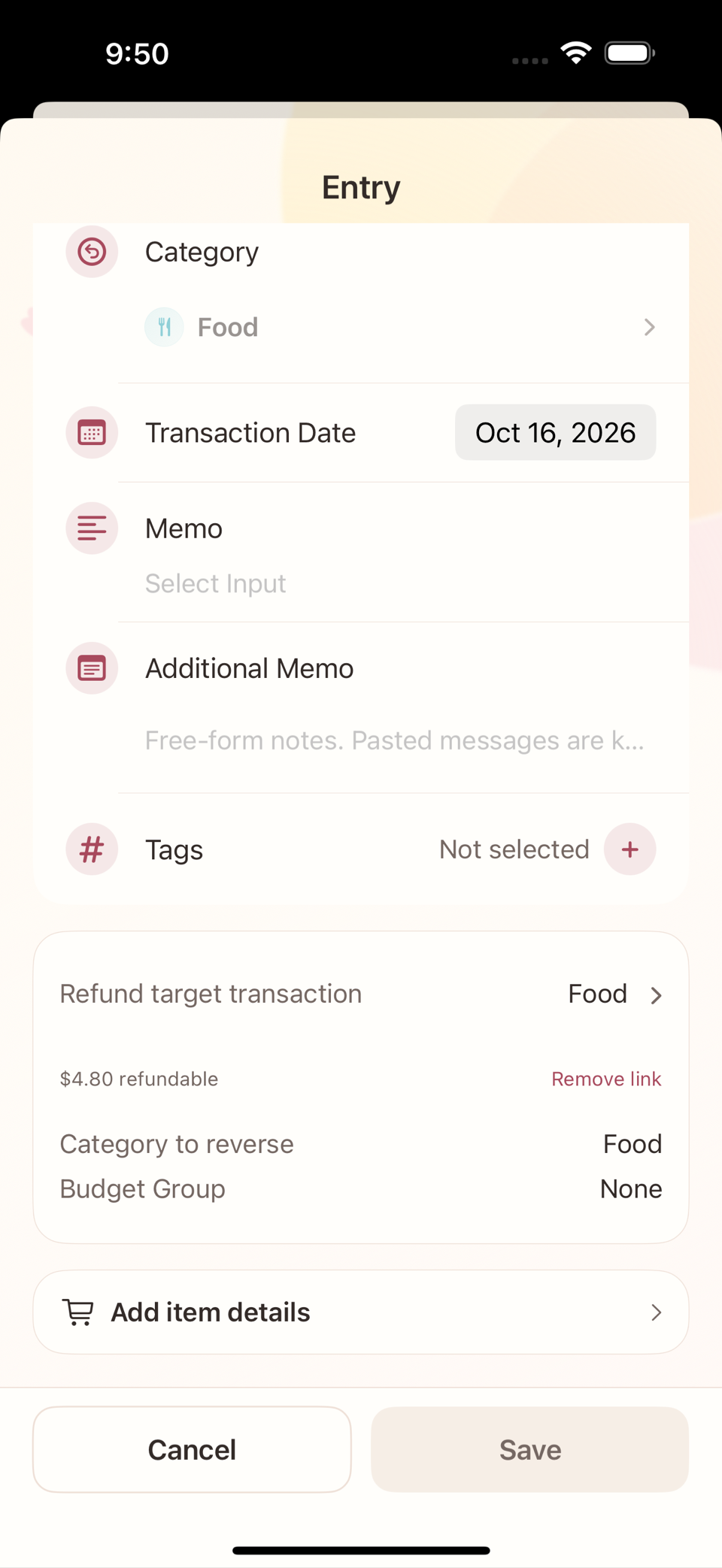
Partial refunds are supported. The refunds linked to one original transaction cannot add up to more than the original expense. Saving does not modify the original: it creates one new transaction and leaves the original as it was. A refund lands in the budget and statistics of the date the refund happened, not the month of the original transaction. So a period containing only refunds can show negative spending or negative budget usage for that category.
Linking the original transaction is optional, but recommended for the automatic fill-in and the protection against over-refunding. Receipts, attachments, and tags on the original are not copied to the refund. If you need proof of the refund, attach it to the refund transaction separately.
Split entry — dividing one payment across categories
When a single payment mixes several kinds of spending (groceries and household goods in one supermarket trip, say), use Split entry. This is not a separate screen: turn on the "Split entry" switch above the category field on the Expense entry screen and the same screen turns into a split-line editor. Each split line can have its own category and amount, and the Split total must exactly equal the full payment amount.
Memo and Additional Memo
- Memo is the short description used like a transaction title in the Ledger, Home, and search results.
- Additional Memo keeps longer free-form notes or the complete source text of a pasted message. When a message is pasted or shared for recognition, its original text is kept as-is, separate from the normalized recognition result. After saving, transaction detail preserves the line breaks and lets you select and copy the text.
If you edit Additional Memo yourself and then paste another message, the app asks before replacing your text with the new source message. Cancel to keep what you wrote. Memo and Additional Memo are independent, so a long source message never changes the transaction title.
What editing and deleting mean
- When you edit a transaction and save, the app does not keep a separate "before" record in your history; it replaces the same transaction with the new content in one step.
- Deleting a transaction goes through a confirmation dialog ("Delete this transaction?") and cannot be undone. The transaction disappears completely and balances and statistics are recalculated immediately. Chapter 14 covers the full warning wording and the two options for deleting an account.